

Python File Handling: open(), Read, Write, Append and with
Learn Python file handling: open() modes r, w, a and x, the with statement, reading line by line, writing and appending, encodings, pathlib and StringIO.
Picture the bahi-khata, the ledger register, at a kirana shop in Malharganj. At opening time the owner takes it out of the drawer and opens it.
During the day he reads old entries to check a customer's dues, and he writes new entries at the bottom. At closing time he shuts the register and puts it back, so no page gets torn or lost.
He also never writes today's entries over yesterday's page. If he did, the old records would be gone. And he keeps a bookmark at the last line he read, so he knows where to continue.
Working with a file in Python follows the same routine. Taking the register out is opening the file. Reading entries and writing new lines at the bottom are reading and appending. The bookmark is the file's position. Closing the register is closing the file, and Python's with statement does it for you even if something goes wrong.
File handling in Python means opening a file with the built-in open() function in a chosen mode, reading or writing its contents through the returned file object, and closing it, usually automatically with a with statement.
This lesson starts the files-and-errors part of the series, after Python type hints. The examples write into a temporary folder or an in-memory file, so they run anywhere, including in your browser. They target Python 3.12+.
How do you open and read a file in Python?
open(path, mode, encoding=...) returns a file object. The with block keeps it open while you work and closes it as soon as the block ends.
import tempfile
from pathlib import Path

folder = Path(tempfile.mkdtemp())
path = folder / "sales_nov.txt"

with open(path, "w", encoding="utf-8") as f:     # create and write
    f.write("2026-11-01,Vijay Nagar,14250\n")
    f.write("2026-11-01,Palasia,9800\n")
    f.write("2026-11-02,Vijay Nagar,15100\n")

with open(path, "r", encoding="utf-8") as f:     # read it back
    content = f.read()

print(content)
print("Closed after with:", f.closed)
f.write() does not add a newline for you, so each line ends with \n. After the with block, f.closed is True. Without with, you would have to call f.close() yourself, and an error halfway through would leave the file open.
What are the file modes in Python?
The second argument to open() is the mode. It decides whether you can read, write or both, and what happens to a file that already exists.
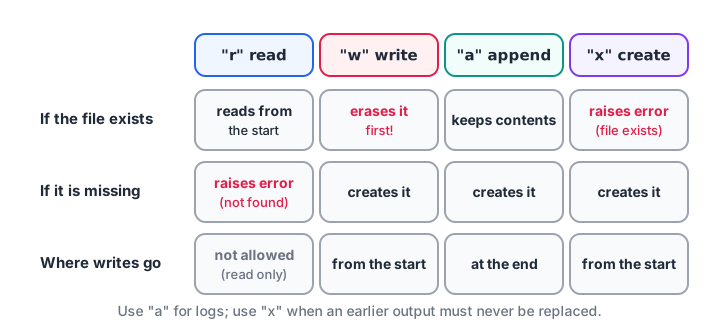
Choose "a" to add to a log and "x" when an existing file must never be overwritten.
| Mode | Purpose | If the file exists | If it is missing |
|---|---|---|---|
"r" |
Read (default) | Reads from the start | FileNotFoundError |
"w" |
Write | Erases it first | Creates it |
"a" |
Append | Writes at the end | Creates it |
"x" |
Exclusive create | FileExistsError |
Creates it |
"r+" |
Read and write | Starts at the beginning | FileNotFoundError |
add "b" |
Binary, e.g. "rb", "wb" |
Works with bytes, not str |
import tempfile
from pathlib import Path

log = Path(tempfile.mkdtemp()) / "orders.log"

with open(log, "w", encoding="utf-8") as f:
    f.write("order 101\n")
with open(log, "a", encoding="utf-8") as f:     # add, keep old lines
    f.write("order 102\n")
print(log.read_text(encoding="utf-8"))

with open(log, "w", encoding="utf-8") as f:     # "w" wipes the file
    f.write("order 103\n")
print(log.read_text(encoding="utf-8"))

try:
    with open(log, "x", encoding="utf-8") as f:
        f.write("never written\n")
except FileExistsError:
    print("x mode refused to overwrite", log.name)
The second print shows only order 103. Opening with "w" by mistake is the most common way to lose data, so use "a" for logs and "x" for outputs that must not replace an earlier run.
Quick check
Which mode adds text to the end of an existing file without deleting what is already there?
"a" (append) writes at the end. "w" erases the file first, and "x" fails if the file exists.
Different ways to read a file in Python
| Method | Returns | Use it for |
|---|---|---|
for line in f: |
One line at a time | Large files; the default choice |
f.read() |
The whole file as one string | Small files |
f.readline() |
The next line | Reading a header, then the rest |
f.readlines() |
A list of all lines | Small files when you need indexing |
Looping over the file object reads one line at a time, so even a 2 GB transaction export uses very little memory. Each line still ends with \n, which .strip() or .rstrip("\n") removes.
import tempfile
from pathlib import Path

path = Path(tempfile.mkdtemp()) / "daily.txt"
path.write_text("date,store,amount\n2026-11-01,Vijay Nagar,14250\n"
                "2026-11-01,Palasia,9800\n2026-11-02,Vijay Nagar,15100\n", encoding="utf-8")

totals = {}
with open(path, encoding="utf-8") as f:
    header = f.readline().strip().split(",")
    for line in f:                              # continues after the header
        date, store, amount = line.strip().split(",")
        totals[store] = totals.get(store, 0) + int(amount)

print(header)
print(totals)
Splitting on commas works for simple files like this one. Real CSV files have quoted fields with commas inside them, so use the csv module for those, as shown in reading and writing CSV in Python.
How do you write to a file in Python?
f.write(text) writes a string and returns the number of characters written. f.writelines(list_of_strings) writes several strings, again without adding newlines. You can also send print() output to a file with file=f, which adds the newline for you.
import tempfile
from pathlib import Path

report = Path(tempfile.mkdtemp()) / "summary.txt"
stores = {"Vijay Nagar": 29350, "Palasia": 9800, "Rajwada": 12600}

with open(report, "w", encoding="utf-8") as f:
    f.write("Store summary, November 2026\n")
    f.writelines(f"{name}: Rs {amt:,}\n" for name, amt in stores.items())
    print("Total:", f"Rs {sum(stores.values()):,}", file=f)

print(report.read_text(encoding="utf-8"))
print(report.stat().st_size, "bytes on disk")
The file position: tell() and seek()
A file object remembers where it is, like the ledger's bookmark. Every read moves the position forward. f.tell() reports the current position and f.seek(0) jumps back to the start, which lets you read the same file twice.
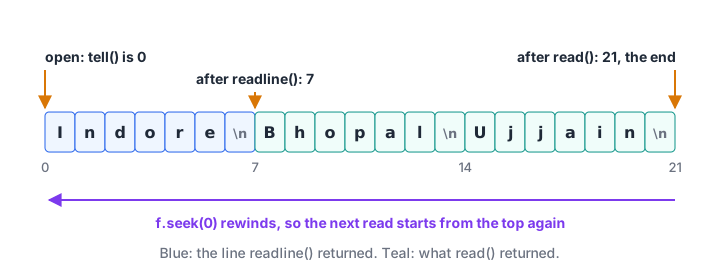
Each read advances the position; seek(0) rewinds so the next read starts from the top again.
import io

f = io.StringIO("Indore\nBhopal\nUjjain\n")   # an in-memory text file
print(repr(f.readline()), "position", f.tell())
print(repr(f.read()), "position", f.tell())
print(repr(f.read()), "nothing left")
f.seek(0)
print(f.readline().strip(), "again, after seek(0)")
io.StringIO behaves like a text file but lives in memory. It is ideal for tests: a function that accepts any file object can be checked with a StringIO instead of a real file. io.BytesIO is the binary equivalent. For text files on disk, only pass seek() a value you got from tell(), or 0.
Quick check
You call f.read() twice on the same open file. What does the second call return?
The first read moves the position to the end. Call f.seek(0) to read again.
Working with paths using pathlib
The pathlib module, part of the standard library, represents paths as objects. It joins folders with /, works on Windows, macOS and Linux alike, and offers shortcuts such as read_text() and write_text() for small files.
import tempfile
from pathlib import Path

exports = Path(tempfile.mkdtemp()) / "exports"
exports.mkdir()
for day, amount in [("01", 14250), ("02", 15100), ("03", 11800)]:
    (exports / f"sales_2026-11-{day}.txt").write_text(f"{amount}\n", encoding="utf-8")

files = sorted(exports.glob("sales_*.txt"))
print([p.name for p in files])
print("Total:", sum(int(p.read_text(encoding="utf-8")) for p in files))
p = files[0]
print(p.stem, p.suffix, p.parent.name, p.exists())
glob("sales_*.txt") finds every matching file, which is how analysts combine a folder of daily exports into one dataset. p.stem is the name without its extension, and p.suffix is the extension.
Text vs binary files and encodings
Text mode works with str and converts characters to bytes using an encoding. Binary mode, "rb" or "wb", works with raw bytes, which is what you need for images, PDFs and Excel files. Hindi characters take three bytes each in UTF-8, so the byte size of a file is often larger than its character count.
import io

text = "Indore इंदौर"
data = text.encode("utf-8")
print(len(text), "characters,", len(data), "bytes")

buf = io.BytesIO()
buf.write(data)
buf.seek(0)
print(buf.read().decode("utf-8"))
try:
    data.decode("ascii")
except UnicodeDecodeError as err:
    print("Wrong encoding:", err.reason)
Common mistakes in Python file handling
- Opening with
"w"when you meant"a". The existing contents are erased immediately. - Forgetting
encoding="utf-8". Files with Hindi or special characters break on some systems. - Not using
with. Files left open can lose unwritten data or stay locked on Windows. - Reading a file twice without
seek(0). The second read returns an empty string. - Using
readlines()on huge files. Loop over the file object instead. - Hard-coding paths with backslashes. Use
pathlib.Pathand the/operator. - Assuming the file exists. Catch
FileNotFoundErrorwith exception handling.
Key takeaways
- Open files with
open(path, mode, encoding="utf-8")inside awithblock. "r"reads,"w"overwrites,"a"appends,"x"refuses to overwrite.- Loop over the file object to process large files line by line.
write()andwritelines()do not add newlines;print(..., file=f)does.tell()andseek()control the file position.- Use
pathlibfor paths andio.StringIOfor in-memory files.
For hands-on file and pandas practice with a mentor, see the Debugshala analytics course with Python file projects.
FAQ
How do you read a file line by line in Python?
Open it in a with block and loop over the file object: for line in f:. Python reads one line per iteration, so memory use stays low even for very large files. Each line keeps its trailing newline, so call line.strip() or line.rstrip("\n") before splitting or comparing it.
What is the difference between w and a mode in Python?
Mode "w" opens a file for writing and erases any existing contents first, creating the file if needed. Mode "a" also creates a missing file, but keeps existing contents and writes new text at the end. Use "a" for logs and running records, and "w" only when you want a fresh file.
Why use with open() in Python?
with open(...) as f: closes the file automatically when the block ends, even if an exception happens inside it. That prevents lost writes, locked files and running out of file handles. It also makes the code shorter, because you never need to call f.close() yourself.
How do I check if a file exists in Python?
Use pathlib.Path("data.csv").exists(), which returns True or False. For reading, it is often better to just open the file inside try and catch FileNotFoundError, because the file could be deleted between checking and opening. Path.is_file() additionally confirms it is a file and not a folder.
Where can I practise Python file handling questions online?
File modes, with and reading methods are common in Python MCQ rounds. You can revise file handling with free quizzes on Debugshala Test. Debugshala's Old Palasia campus in Indore also covers file handling in its classroom data analytics course, with a free demo class.
From the team behind this site
Go further with the Data Analytics Course at Debugshala
These tutorials are written by Debugshala, a training and placement institute at Old Palasia, Indore. The classroom course adds live mentoring, real projects and interview preparation.
- Offline classes at Old Palasia, Indore
- Free demo class before you pay
- Non-IT, fresher and year-gap friendly
- Placement assistance
700+ students placed · 200+ hiring partners · 4.9★ Google rating
