

Getting Started with Python: Try It Online, Then Install It
Run Python in your browser right now, then install Python and VS Code on Windows, macOS or Ubuntu step by step and run your first .py file with confidence.
Imagine you have just joined the accounts team of a textile wholesaler in Indore. Every Monday you copy numbers from five sales sheets into one summary and add them with a calculator. It takes two hours, and one wrong keystroke spoils the report.
A colleague says a small Python script would do it in two seconds. You have never written code, and you don't know what to download or where to type.
This lesson removes that first hurdle. You will run Python in your browser within a minute, then set it up on your own laptop.
Python is a free, general-purpose programming language whose plain, readable syntax makes it the most common first language for data analysts, and to use it you need a Python interpreter: the program that reads your code and carries out each line.
What do you need to run Python?
Python code is just text, and a file of text does nothing on its own. The interpreter reads that text and turns each line into action.
When people say "install Python", they mean "install the interpreter". You write instructions in a file, hand it to the interpreter, and it prints results, creates files or talks to databases.
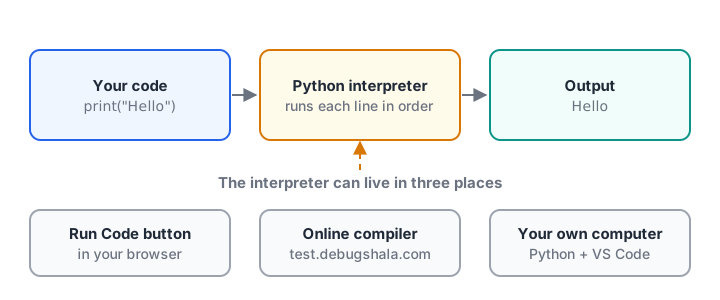
Every way of running Python follows the same path: your code goes in, the interpreter runs it, output comes out.
You can get an interpreter in three ways, and you will probably use all three while learning:
| Option | Install needed? | Best for |
|---|---|---|
| Run Code buttons on this site | No | Trying each example as you read |
| Online compiler on Debugshala Test | No | Writing your own small programs and practice tests |
| Python + VS Code on your computer | Yes, about 15 minutes | Real projects, files, pandas and Excel data |
Try Python in your browser first (no install)
Every grey code block on this site marked as Python has a Run Code button. Press it and a real copy of Python, built to work inside web browsers, runs the code on your own device. Nothing is sent to a server and nothing gets installed.
Try it now. Press Run Code on the block below:
print("Hello from Python!")
print("Chai orders, 8 to 11 am:", 18 + 25 + 12)
print("Average per hour:", (18 + 25 + 12) / 3)
print("Orders above 20 in the 9 am slot?", 25 > 20)
print("Done.")
You should see five lines, including two sums and a True/False answer that Python worked out. Edit the numbers and run it again; you cannot break anything here.
monthly_sales = [42000, 38500, 51200]
print("Sales list:", monthly_sales)
print("Total sales:", sum(monthly_sales))
print("Best month:", max(monthly_sales))
print("Months counted:", len(monthly_sales))
That is a tiny analyst task already: a total, a maximum and a count.
The browser runner cannot open files on your computer or reach the internet, and heavy programs run slowly. For those jobs, install Python locally.
Quick check
What does "installing Python" actually put on your computer?
The interpreter is the program that executes Python code. VS Code is a separate editor you install alongside it.
How to install Python and VS Code (step by step)
You will install two things. Python is the interpreter. Visual Studio Code (VS Code) is a free code editor from Microsoft where you type and run your programs. The examples in this series work on Python 3.12 or newer, and the browser runner uses Python 3.13.
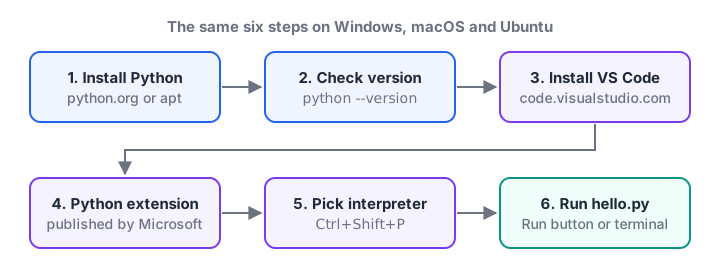
The setup in six steps, the same on every operating system. Only the download method changes.
Install Python on Windows
- Open the official Python downloads page. On Windows it offers the Python install manager. You can also get the same manager from the Microsoft Store by searching "Python Install Manager".
- Install the manager, then open PowerShell or Command Prompt from the Start menu.
- Ask it to install the newest Python 3, for example version 3.15:
py install 3.15- If it asks whether to add Python to your PATH, say yes. PATH is the list of folders Windows searches when you type a command, so this lets the plain
pythoncommand work everywhere. - Close the terminal, open a new one and check:
python --version
py list
You should see a version such as Python 3.15.2, and py list shows every Python version the manager knows about.
Install Python on macOS
- Open Terminal (press Cmd + Space, type "Terminal") and check what is already there:
python3 --version- Download the macOS installer (a
.pkgfile) from python.org/downloads. - Double-click it, accept the licence and keep the default location. Enter your Mac password when asked.
- When it finishes, open the Python folder in Applications and double-click Install Certificates.command once. Without it, some downloads from Python can fail later.
- Open a new Terminal window and run
python3 --versionagain. It should now show the version you installed.
On a Mac, always type python3, not python. The plain python command may not exist at all.
Install Python on Ubuntu Linux
Ubuntu ships with Python 3 already (Ubuntu 24.04 includes Python 3.12), so you usually only add the extras.
python3 --version
sudo apt update
sudo apt install python3 python3-pip python3-venv
The python3-venv package lets you create virtual environments, private folders for each project's libraries. Recent Ubuntu versions refuse pip install into the system Python, so you will install pandas and friends inside one. The lesson on virtual environments and pip shows exactly how.
Install VS Code and the Python extension
- Download VS Code from code.visualstudio.com. On Windows run the installer. On a Mac, drag the app into Applications. On Ubuntu, either install the
.debfile or runsudo snap install code --classic. - Open VS Code, click the Extensions icon on the left sidebar (four small squares) and search for Python. Install the one published by Microsoft.
- Press Ctrl + Shift + P (Cmd + Shift + P on a Mac), type Python: Select Interpreter and pick the Python you just installed.
Quick check
On macOS, which command reliably checks your Python version?
macOS uses python3. The py command belongs to the Windows install manager.
Run your first Python file on your computer
Now put it all together with a real file.
- In VS Code choose File → Open Folder and create a folder called
python-practice. - Choose File → New File and save it as
hello.py. The.pyending tells VS Code and the interpreter that this is Python. - Type this code:
print("Hello, Indore!")
print("2 + 3 * 4 =", 2 + 3 * 4)
print("Python is ready.")- Click the Run Python File button (a small triangle) at the top right of the editor. A terminal panel opens at the bottom and shows:
Hello, Indore!
2 + 3 * 4 = 14
Python is ready.
You can also run the file yourself from any terminal opened in that folder:
python hello.pyUse python3 hello.py on macOS and Linux. The Run button simply types this command for you.
Common setup problems and fixes
- "python is not recognized" on Windows. PATH was not updated. Open a fresh terminal first, because old windows keep the old PATH. If that fails, run the install manager again or use the
pycommand. - VS Code runs the wrong Python. You have more than one installed. Use Python: Select Interpreter and choose the newest one.
- The file runs as plain text. It was saved as
hello.py.txt. Rename it to end in.py. print("hi")typed in the terminal fails. That is the system shell, not Python. Typepythonfirst to open the>>>prompt, andexit()to leave.
Key takeaways
- You can learn the basics today with the Run Code buttons on this site, with no install at all.
- Installing Python means installing the interpreter. VS Code is the editor where you write code.
- Windows uses the Python install manager and the
pycommand; macOS uses the python.org.pkg; Ubuntu usesapt. - Always confirm the setup with
python --versionorpython3 --versionin a new terminal. - Save programs as
.pyfiles and run them with VS Code's Run button or from the terminal.
You are ready to write code. Next, learn what every part of your first Python program does, and after that how to leave notes in code with Python comments.
FAQ
Do I need to install Python to learn it?
No. You can work through the first lessons using the Run Code buttons on this site, which run real Python inside your browser. Install Python when you need to open your own files, use libraries like pandas on large data, or build projects that run outside a browser.
Which version of Python should I install?
Install the latest stable Python 3 release from python.org. Python 2 is retired and no longer receives fixes. The examples in this series work on Python 3.12 or newer, so the version Ubuntu ships is fine too. Avoid very old versions found in outdated tutorials.
Is VS Code required for Python?
No. Any text editor plus a terminal can run Python, and Jupyter notebooks or PyCharm are popular alternatives. VS Code is recommended here because it is free, works on Windows, macOS and Linux, and its Python extension gives you autocomplete, a Run button and a debugger.
Where can I practise Python online for free?
You can run every example in this series in your browser. For your own programs, the free online compiler and practice tests on Debugshala Test need only a browser, and its quizzes help you check concepts as you go.
Can I learn Python in a classroom in Indore?
Yes. Debugshala teaches Python as the first module of its data analytics programme in Indore, with offline classes at Old Palasia in English and Hindi. Fresh graduates and non-IT learners are welcome, and you can attend a free demo class before paying anything.
From the team behind this site
Go further with the Data Analytics Course at Debugshala
These tutorials are written by Debugshala, a training and placement institute at Old Palasia, Indore. The classroom course adds live mentoring, real projects and interview preparation.
- Offline classes at Old Palasia, Indore
- Free demo class before you pay
- Non-IT, fresher and year-gap friendly
- Placement assistance
700+ students placed · 200+ hiring partners · 4.9★ Google rating
