

Excel VBA Basics: Variables, Loops and the Range Object
Learn Excel VBA from zero: the VBA editor, Option Explicit, Dim and data types, the object model, Range and Cells, loops, If, functions and error handling.
Think of the macro recorder from the Excel macros tutorial as a parrot. It repeats exactly what it heard, word for word. Ask it to "do the same thing for every bill on the sheet, but mark the big ones" and it has no idea what you mean.
Now think of a trained shop assistant. You tell him once: "Go down the bill register from the top. For each bill, if it is ₹10,000 or more, write Large beside it; if it is zero, write Check. Stop at the first empty row and tell me the total." He handles 40 bills or 4,000 without new instructions.
Those instructions are a program. "Go down the register" is a loop, "if it is ₹10,000 or more" is a condition, the running total is a variable, and the register itself is a Range object. The language you give such instructions to Excel in is VBA.
VBA (Visual Basic for Applications) is the event-driven programming language built into Microsoft Office that lets you automate Excel by writing procedures that read and change workbooks, sheets and cells.
Everything here works in Microsoft 365 Excel and Excel 2016 to 2021 for Windows; Excel for Mac runs the same core language.
How do you open the VBA editor in Excel?
Press Alt+F11 (or Developer > Visual Basic). The Visual Basic Editor (VBE) opens in its own window.
- In the Project Explorer on the left, find your workbook, for example VBAProject (Bills.xlsm). Press Ctrl+R if the pane is hidden.
- Choose Insert > Module. A blank code window opens. Modules are where ordinary macros live.
- Type a procedure, click inside it and press F5 to run it, or F8 to run one line at a time.
- Press Ctrl+G to open the Immediate Window.
Debug.Printwrites there, and you can type? Range("B2").Valueto test an expression instantly.
Save the workbook as .xlsm, or the code is lost when you close it.
What is Option Explicit in VBA?
By default VBA lets you use undeclared variables, so a typo silently creates a new, empty one.
Sub NoOptionExplicit()
    totl = 0                ' typo: should be total
    total = total + 500
    MsgBox totl             ' shows 0, and nobody notices
End Sub
Add Option Explicit as the first line of the module and VBA refuses to run that code. It stops on totl with "Variable not defined", so you fix the typo before it reaches a report.
To add it to every new module automatically, choose Tools > Options > Editor in the VBE and tick Require Variable Declaration. Existing modules need the line added by hand. Microsoft's Option Explicit reference has the details.
Quick check
What does Option Explicit do in a VBA module?
With Option Explicit, an undeclared or misspelled variable stops the code with "Variable not defined", so typos are caught early.
How do you declare variables in VBA?
You declare a variable with Dim name As Type. The right type catches wrong data early.
| Type | Holds | Example |
|---|---|---|
Long |
Whole numbers up to about ±2.1 billion | Row numbers, quantities |
Double |
Decimal numbers | ₹ amounts, rates |
Currency |
Fixed 4-decimal money values | Totals where float rounding matters |
String |
Text | Customer names |
Boolean |
True or False | A "found" flag |
Date |
Dates and times | Bill date |
Variant |
Anything (the default if you omit the type) | Values of unknown type |
Range, Worksheet |
Objects | A cell, a sheet |
Use Long, not Integer, for row numbers: Integer stops at 32,767.
Object variables need Set: Dim ws As Worksheet, then Set ws = Worksheets("Bills"). Forgetting it gives "Object variable or With block variable not set".
How does the Excel object model work?
Excel is a tree of objects. You reach a cell by walking down it: application, workbook, worksheet, range.
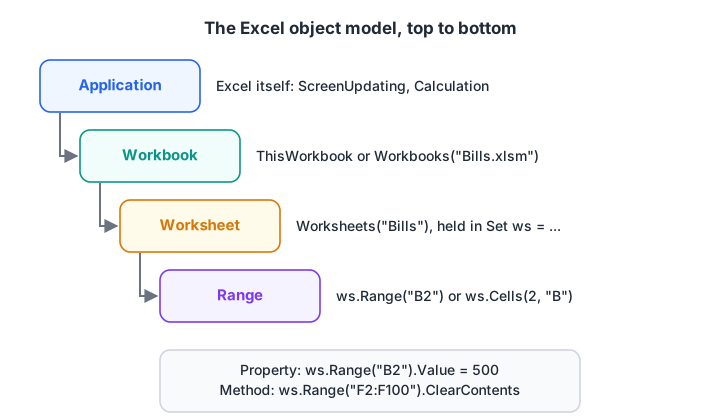
Each object has properties (what it is) and methods (what it can do).
Option Explicit

Sub ObjectTreeDemo()
    Dim ws As Worksheet
    Set ws = ThisWorkbook.Worksheets("Bills")

    Debug.Print ws.Range("B2").Value            ' read a property
    ws.Range("D1").Value = "With GST"           ' write a property
    ws.Range("F2:F100").ClearContents           ' call a method
End Sub
ThisWorkbook means the file containing the code, safer than ActiveWorkbook (whatever file is in front). Writing ws. before every range stops the macro scribbling on the wrong sheet.
Range, Cells and the last row
There are two ways to point at cells. Range("B2") uses an address. Cells(2, 2) or Cells(2, "B") uses row and column numbers, which is what you want inside a loop.
Real data never has a fixed number of rows, so you find the last filled row from the bottom up:
lastRow = ws.Cells(ws.Rows.Count, "A").End(xlUp).RowIt jumps to the bottom of column A and does the equivalent of Ctrl+Up. Offset(1, 0) moves one row down, and Resize(10, 4) stretches a range to 10 rows by 4 columns.
Why you should avoid Select
Recorded macros are full of Range("A1").Select then Selection.Font.Bold = True. Selecting is slow and breaks if the user is on another sheet. Write ws.Range("A1").Font.Bold = True instead.
Quick check
Which line correctly finds the last filled row in column A of the worksheet ws?
Starting from the bottom row and moving up with End(xlUp) lands on the last non-empty cell, even when there are blanks in the middle.
How do you write loops and conditions in VBA?
Here is a sample Bills sheet.
| A: Customer | B: Amount (₹) | C: Tag | D: With GST | |
|---|---|---|---|---|
| 2 | Gupta Kirana | 18,400 | ||
| 3 | Jain Stores | 9,600 | ||
| 4 | Mehta General | 0 | ||
| 5 | Sharma Provision | 12,600 |
The macro below walks down every row, tags each bill and adds the amount with GST, using a custom function shown after it.
Option Explicit

Sub TagBills()
    Dim ws As Worksheet
    Dim lastRow As Long, r As Long
    Dim amount As Double, total As Double

    Set ws = ThisWorkbook.Worksheets("Bills")
    lastRow = ws.Cells(ws.Rows.Count, "A").End(xlUp).Row

    For r = 2 To lastRow
        amount = ws.Cells(r, "B").Value

        If amount >= 10000 Then
            ws.Cells(r, "C").Value = "Large"
        ElseIf amount > 0 Then
            ws.Cells(r, "C").Value = "Regular"
        Else
            ws.Cells(r, "C").Value = "Check"
        End If

        ws.Cells(r, "D").Value = WithGST(amount)
        total = total + amount
    Next r

    MsgBox "Rows processed: " & (lastRow - 1) & vbCrLf & _
           "Total: " & Format(total, "#,##0")
End Sub
After it runs, column C reads Large, Regular, Check, Large; column D reads 19,320, 10,080, 0 and 13,230; and the message box says "Rows processed: 4, Total: 40,600".
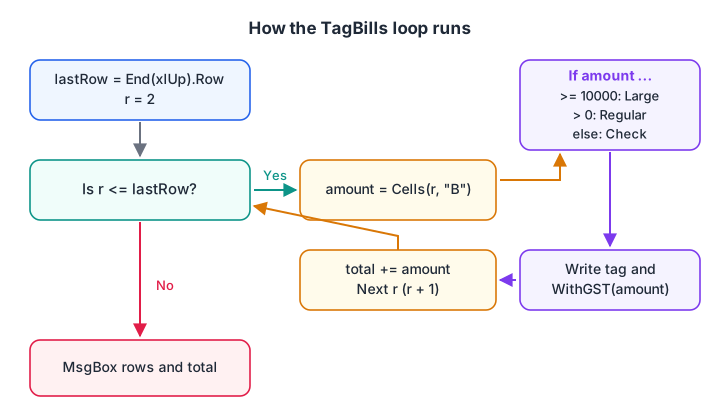
The loop repeats the same block once per row until it passes the last row.
Other loop types
For Each walks through every cell of a range without a counter. It is the cleanest way to touch each cell.
Dim cell As Range
For Each cell In ws.Range("A2:A" & lastRow)
    cell.Value = Trim(cell.Value)      ' remove stray spaces from names
Next cell
Do While repeats while a condition stays true, useful when you do not know the end in advance.
r = 2
Do While ws.Cells(r, "A").Value <> ""
    r = r + 1
Loop
Debug.Print "First empty row: " & r
Select Case for many choices
When one value can take many options, Select Case reads better than a chain of ElseIf.
Select Case ws.Cells(r, "E").Value
    Case "Vijay Nagar", "Palasia"
        ws.Cells(r, "F").Value = "Route 1"
    Case "Rajwada", "Siyaganj"
        ws.Cells(r, "F").Value = "Route 2"
    Case Else
        ws.Cells(r, "F").Value = "Unassigned"
End Select
The logic is the same as the IFS function in Excel IF, IFS, AND, OR, but you can do much more inside each branch.
What is the difference between a Sub and a Function?
A Sub performs actions: format, copy, write cells. You run it with F5, Alt+F8 or a button. A Function returns a value, and a public function in a module can be used in a worksheet cell like a built-in formula.
Function WithGST(ByVal amount As Double, Optional ByVal rate As Double = 0.05) As Double
    ' Rate is passed in; check the current GST rate for each item
    WithGST = Round(amount * (1 + rate), 2)
End Function
In a cell, =WithGST(B2) uses the 5% default and =WithGST(B2, 0.18) uses 18%. Note that VBA's Round uses banker's rounding (2.5 becomes 2), while the worksheet ROUND rounds 2.5 up to 3. Use Application.WorksheetFunction.Round if you need the two to agree.
How do you handle errors in VBA?
One text value in the Amount column stops TagBills with "Run-time error 13: Type mismatch", half done. Handle it in two layers: check the data, then catch the unexpected.
Option Explicit

Sub TagBillsSafely()
    Dim ws As Worksheet, r As Long, lastRow As Long
    On Error GoTo ErrHandler

    Set ws = ThisWorkbook.Worksheets("Bills")
    lastRow = ws.Cells(ws.Rows.Count, "A").End(xlUp).Row

    For r = 2 To lastRow
        If IsNumeric(ws.Cells(r, "B").Value) Then
            ws.Cells(r, "D").Value = WithGST(ws.Cells(r, "B").Value)
        Else
            ws.Cells(r, "C").Value = "Not a number"
        End If
    Next r
    Exit Sub                     ' stop here when all went well

ErrHandler:
    MsgBox "Error " & Err.Number & ": " & Err.Description, vbExclamation
End Sub
On Error GoTo ErrHandler jumps to the label if anything fails, and Exit Sub stops the handler running on success. A missing "Bills" sheet now gives a clear message, not a crash.
Use On Error Resume Next only around one line you expect might fail, and switch it off straight after with On Error GoTo 0. Leaving it on hides every bug in the rest of the macro. Microsoft's On Error statement page covers the options.
The same loop in plain Python
If you know Python, compare the two: the structure is identical.
# The VBA loop from this article, line for line in plain Python
bills = [("Gupta Kirana", 18400), ("Jain Stores", 9600),
         ("Mehta General", 0), ("Sharma Provision", 12600)]

def with_gst(amount, rate=0.05):
    # Same job as the VBA Function WithGST
    return round(amount * (1 + rate), 2)

total = 0
for row, (customer, amount) in enumerate(bills, start=2):   # data starts in row 2
    if amount >= 10000:
        tag = "Large"
    elif amount > 0:
        tag = "Regular"
    else:
        tag = "Check"
    total += amount
    print(f"Row {row}: {customer:<17} {amount:>6}  {tag:<8} {with_gst(amount):>9}")

print("Rows processed:", len(bills), "| Total:", total)
For r = 2 To lastRow is Python's for loop, and If...ElseIf...Else is if-elif-else. Knowing one makes the other easy.
Common VBA beginner mistakes
- No Option Explicit. Typos become silent zeros.
- Unqualified ranges.
Range("A1")means the active sheet; writews.Range("A1"). - Integer for rows. Use Long.
- Hard-coded last rows such as
For r = 2 To 500. Find the last row withEnd(xlUp). - Missing Set for object variables.
Next, put these pieces together in five practical VBA macros for reports. If you would rather learn VBA with a mentor, Debugshala covers Excel and macros in its BI Tools course for Indore learners.
Key takeaways
- Open the editor with Alt+F11, insert a Module, run with F5 and step with F8.
- Always use Option Explicit and declare variables with the right type (Long for rows, Double for amounts).
- Qualify ranges with a worksheet variable and avoid Select.
- For...Next, For Each, Do While, If and Select Case cover most logic.
- Wrap macros in
On Error GoTowithExit Subbefore the handler.
FAQ
Is VBA hard to learn for beginners?
No. VBA reads close to English, and you can start by recording a macro and reading the code Excel writes. Most analysts become useful with variables, one loop type, If statements and the Range object, which is a few weeks of regular practice. Error handling and the object model come next.
What is the difference between VBA and macros in Excel?
VBA is the programming language; a macro is a procedure written in it. Recording a macro produces VBA automatically, but recorded code cannot loop or make decisions. Writing VBA yourself adds loops, conditions, custom functions and error handling, which is what turns a recording into a reliable tool.
Is VBA still worth learning in 2026?
Yes, for jobs built around Excel. Many finance, accounts and operations teams still run daily reports on VBA, and it works in every desktop version of Excel. For new projects, also learn Power Query and Python, since VBA does not run in Excel for the web, where Office Scripts are used instead.
What does Dim mean in VBA?
Dim stands for "dimension" and declares a variable, optionally with a type, as in Dim total As Double. Declaring tells VBA how much memory to reserve and what kind of value to expect. With Option Explicit on, every variable must be declared with Dim before use.
Can I learn Excel VBA in Indore as a non-IT graduate?
Yes. Debugshala teaches Excel and macros in its Data Analytics and BI Tools courses, which accept fresh graduates, non-IT backgrounds and people with a year gap. Classes run at Old Palasia in English and Hindi, after a free demo class. For practice between sessions, try the coding quizzes on Debugshala Test.
From the team behind this site
Go further with the Data Analytics Course at Debugshala
These tutorials are written by Debugshala, a training and placement institute at Old Palasia, Indore. The classroom course adds live mentoring, real projects and interview preparation.
- Offline classes at Old Palasia, Indore
- Free demo class before you pay
- Non-IT, fresher and year-gap friendly
- Placement assistance
700+ students placed · 200+ hiring partners · 4.9★ Google rating
