

Excel IF Function with IFS, AND, OR: Logical Formulas Explained
Master the Excel IF function with IFS, AND, OR, SWITCH and IFERROR, using discount slabs and delivery rules from a real-looking Indian sales sheet.
Every month, the sales manager at Narmada Traders decides each invoice's trade discount with a simple rule printed on the office wall. "Bill of ₹6,000 or more: 5% off. ₹4,000 or more: 3% off. Anything smaller: no discount." A new clerk applies it by reading each bill, comparing the amount, and writing the discount next to it.
That rule is a chain of questions with a yes-or-no answer at each step. The clerk is doing logic by hand.
Each comparison ("is it ₹6,000 or more?") is a logical test. The answers written beside the bills are return values. The whole rule, typed once into Excel and copied down a column, is an IF or IFS formula.
The Excel IF function is a logical function that checks whether a condition is true and returns one value if it is and a different value if it is not.
This tutorial continues with the Sales Table from the formulas and functions tutorial. Results below use its ten invoices, with amounts in rupees.
How does the IF function work in Excel?
The syntax has three parts:
=IF(logical_test, value_if_true, value_if_false)The test is any expression that gives TRUE or FALSE, usually a comparison. Mark invoices of ₹5,000 or more as large orders:
=IF([@Amount]>=5000, "Large", "Regular")| Invoice | Amount | Result |
|---|---|---|
| NT-1001 | 5040 | Large |
| NT-1002 | 4800 | Regular |
| NT-1003 | 6960 | Large |
| NT-1004 | 2600 | Regular |
The return values can be text (in quotes), numbers or other formulas. This one calculates the delivery charge: ₹150 on small orders, nothing on others.
=IF([@Amount]<3000, 150, 0)
→ 150 for NT-1004, 0 for every other invoice
Comparison operators you can test
| Operator | Meaning | Example test |
|---|---|---|
= |
equal to | [@Area]="Palasia" |
<> |
not equal to | [@Category]<>"Oil" |
> / < |
greater / less than | [@Qty]>20 |
>= / <= |
at least / at most | [@Amount]>=4000 |
Text comparisons are not case-sensitive, so "palasia" matches "Palasia". They are, however, broken by stray spaces, which is why cleaning comes before logic.
Nested IF vs IFS: handling slabs
The discount rule has three outcomes, but one IF has only two. The classic answer is to put a second IF in the FALSE slot of the first.
=IF([@Amount]>=6000, 5%, IF([@Amount]>=4000, 3%, 0%))Excel checks the tests from left to right and stops at the first TRUE. That is why the order matters: test the highest slab first. If you tested >=4000 first, a ₹6,960 bill would stop there and wrongly get 3%.
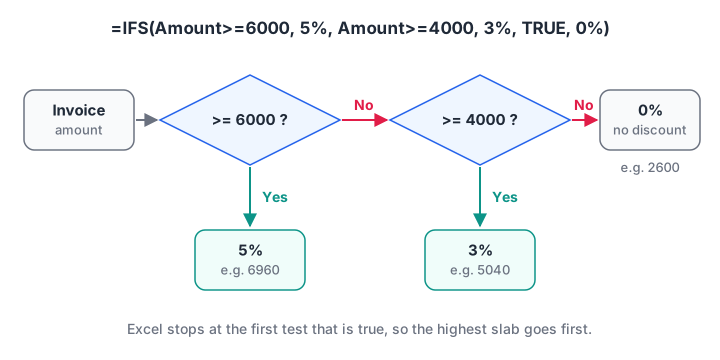
Excel walks down the tests and returns the value of the first one that is true. Put the biggest slab at the top.
The IFS function
IFS (Microsoft 365, Excel 2019 and later) lists test and value pairs without the brackets piling up. The final TRUE acts as "everything else".
=IFS([@Amount]>=6000, 5%, [@Amount]>=4000, 3%, TRUE, 0%)| Invoice | Amount | Discount | Discount ₹ (=[@Amount]*[@Discount]) |
|---|---|---|---|
| NT-1003 | 6960 | 5% | 348 |
| NT-1006 | 6300 | 5% | 315 |
| NT-1001 | 5040 | 3% | 151.2 |
| NT-1004 | 2600 | 0% | 0 |
Without that last TRUE, 0% pair, any amount below ₹4,000 returns #N/A, because no test matched. Microsoft's IFS help page documents this behaviour.
In Excel 2016, IFS is not available in the one-time-purchase version, so you would see #NAME?. Use the nested IF there.
Quick check
What does =IFS([@Amount]>=4000, 3%, [@Amount]>=6000, 5%, TRUE, 0%) return for a ₹6,960 invoice?
IFS returns the value of the first true test. 6960 is at least 4000, so it stops there and returns 3%. The slabs are in the wrong order.
AND, OR and NOT: testing several conditions
Narmada Traders offers free delivery on Staples orders of at least 15 units. That is two conditions that must both hold, so you use AND.
=IF(AND([@Category]="Staples", [@Qty]>=15), "Free delivery", "Charge")Three invoices qualify: NT-1002 (30 units of dal), NT-1005 (20 of sugar) and NT-1006 (15 of atta). NT-1001 is Staples but only 12 units, so it fails.
The Rajwada and Palasia routes share one van, so either area should be tagged "Central route". Only one condition needs to hold, so you use OR.
=IF(OR([@Area]="Rajwada", [@Area]="Palasia"), "Central route", "Outer route")NOT flips a result. =NOT([@Category]="Oil") is TRUE for every non-oil row, the same as [@Category]<>"Oil".
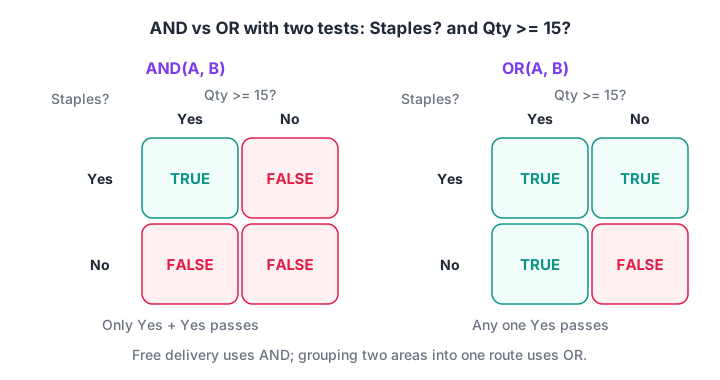
AND needs every condition to pass. OR needs just one. Each takes up to 255 conditions.
| Function | Returns TRUE when | Typical use |
|---|---|---|
AND(a, b) |
every test is true | eligibility rules with several conditions |
OR(a, b) |
at least one test is true | grouping several values into one bucket |
NOT(a) |
the test is false | excluding a category |
XOR(a, b) |
an odd number of tests is true | rare in reporting |
Quick check
Which formula tags a row only when the area is Palasia and the quantity is above 20?
Both conditions must hold, so AND is correct. OR would tag every Palasia row and every row above 20 units.
SWITCH: matching one value against a list
When you compare a single cell against several exact values, SWITCH (Microsoft 365, Excel 2019 and later) is cleaner than nested IFs. Assign a sales representative by area:
=SWITCH([@Area],
        "Vijay Nagar", "Rohit",
        "Palasia",     "Neha",
        "Rajwada",     "Neha",
        "Arjun")
The last argument, with no pair, is the default. Bhawarkuan and Sudama Nagar both get Arjun. For more than five or six options, a lookup table is easier to maintain than either SWITCH or IFS.
IFERROR and IFNA: handling errors gracefully
Some formulas fail on some rows. Average rate per unit is =[@Amount]/[@Qty], but a row with Qty 0 or blank gives #DIV/0!. IFERROR returns a fallback instead.
=IFERROR([@Amount]/[@Qty], 0)IFNA catches only #N/A, which is what lookups return when a key is missing. Prefer it for lookups, because it still lets other errors (such as a deleted column's #REF!) show up.
=IFNA(XLOOKUP([@Retailer], Retailers[Name], Retailers[Credit Days]), "Not in master")Count and sum with logic, without a helper column
A comparison on a whole column returns an array of TRUE and FALSE. Multiplying by 1, or using --, turns them into 1 and 0, which you can add up. In Microsoft 365 this works directly:
=SUM(--(Sales[Amount]>=5000))                                → 4
=SUM((Sales[Category]="Staples")*(Sales[Qty]>=15))           → 3
=SUM((Sales[Category]="Staples")*(Sales[Qty]>=15)*Sales[Amount])  → 15700
Multiplying conditions behaves like AND. Adding them behaves like OR, as long as you watch for rows that match both. In Excel 2016 and 2019, wrap these in SUMPRODUCT instead of SUM, or confirm them with Ctrl+Shift+Enter.
The same logic in pandas
In Python, numpy.where is a two-way IF and numpy.select is IFS. This block applies the discount slabs and the free-delivery rule to the same invoices.
import numpy as np
import pandas as pd

sales = pd.DataFrame({
    "Invoice": ["NT-1001", "NT-1002", "NT-1003", "NT-1004", "NT-1005", "NT-1006"],
    "Category": ["Staples", "Staples", "Oil", "Beverages", "Staples", "Staples"],
    "Qty": [12, 30, 48, 10, 20, 15],
    "Amount": [5040, 4800, 6960, 2600, 4600, 6300],
})

# =IFS(Amount>=6000, 5%, Amount>=4000, 3%, TRUE, 0%)
sales["Discount"] = np.select(
    [sales["Amount"] >= 6000, sales["Amount"] >= 4000], [0.05, 0.03], default=0.0)

# =IF(AND(Category="Staples", Qty>=15), "Free delivery", "Charge")
both = (sales["Category"] == "Staples") & (sales["Qty"] >= 15)
sales["Delivery"] = np.where(both, "Free delivery", "Charge")

sales["Discount Rs"] = (sales["Amount"] * sales["Discount"]).round(1)
print(sales.to_string(index=False))
Like IFS, np.select takes the first condition that is true, so the order of the list matters in exactly the same way.
Common mistakes with IF formulas
- Wrong slab order. Testing the smallest threshold first catches every amount there. Always go from strictest to loosest.
- Numbers in quotes.
=IF([@Qty]>"15", ...)compares with text and gives odd results. Write>15without quotes. - Missing default in IFS. No
TRUE, valuepair means#N/Afor rows that match nothing. - Blank cells treated as zero.
=IF([@Qty]<5, "Low", "OK")calls an empty cell "Low". Test for blanks first:=IF([@Qty]="", "Missing", IF([@Qty]<5, "Low", "OK")). - Hard-coded thresholds. Put 6000 and 4000 in cells and reference them with
$, so a policy change takes one edit.
If you want to practise these patterns against a timer, Debugshala Test has aptitude and logic quizzes that train the same step-by-step thinking.
Key takeaways
IF(test, if_true, if_false)is the basic decision formula in Excel.- For three or more outcomes, use IFS (2019 and later) or nested IFs, testing the biggest slab first.
- AND needs every condition; OR needs at least one; NOT flips a result.
- SWITCH matches one value against a list and takes a default at the end.
- Use IFNA for lookups and IFERROR sparingly, after you understand the error.
FAQ
How many IF functions can you nest in Excel?
Excel allows up to 64 nested IF functions, according to Microsoft's documentation. In practice, more than three or four becomes hard to read and easy to break. Switch to IFS, SWITCH or a lookup table with XLOOKUP once your rule has several slabs.
What is the difference between IF and IFS in Excel?
IF tests one condition and returns one of two values. IFS tests several conditions in order and returns the value for the first one that is true. IFS needs Excel 2019, 2021, 2024 or Microsoft 365. In Excel 2016, use nested IF formulas instead.
Can I use IF with text in Excel?
Yes. Put the text in double quotes, as in =IF([@Area]="Palasia","Central","Outer"). The comparison ignores upper and lower case but not spaces. For a partial match, such as any retailer containing "Kirana", combine IF with ISNUMBER and SEARCH: =IF(ISNUMBER(SEARCH("Kirana",[@Retailer])),"Kirana","Other").
Why does my IF formula return FALSE instead of a value?
You left out the third argument. =IF([@Amount]>5000,"Large") returns FALSE when the test fails, because there is no value_if_false. Add it, even if it is just an empty string: =IF([@Amount]>5000,"Large","").
Where can I learn Excel and data analytics in Indore?
Debugshala, at Old Palasia in Indore, teaches Excel, including logical formulas like these, in a Data Analytics course with a free demo class, taught offline in English and Hindi. It accepts fresh graduates and non-IT learners. The same logic reappears in SQL as CASE WHEN and in Python as if-else.
From the team behind this site
Go further with the Data Analytics Course at Debugshala
These tutorials are written by Debugshala, a training and placement institute at Old Palasia, Indore. The classroom course adds live mentoring, real projects and interview preparation.
- Offline classes at Old Palasia, Indore
- Free demo class before you pay
- Non-IT, fresher and year-gap friendly
- Placement assistance
700+ students placed · 200+ hiring partners · 4.9★ Google rating
