

Excel Macros Tutorial: Record, Run and Save .xlsm Files
Record your first Excel macro, use relative references, add a button, save as .xlsm, use the Personal Macro Workbook and set Trust Center macro security safely.
Every evening the accountant at a wholesale shop in Indore's Siyaganj market gets the same billing export. Before the owner sees it, she makes the header row bold, fills it light blue, formats the Amount column with thousands separators, widens the columns and freezes the top row.
It is twelve clicks, 25 times a month, and on a busy evening she forgets one.
Now imagine a voice recorder for Excel. She presses record, does the twelve clicks once, presses stop, and from tomorrow one keystroke replays all twelve, in the same order, every time. That recorder is the macro recorder, the recording is a macro, and the language Excel writes the recording in is VBA.
An Excel macro is a named, saved sequence of commands, stored as VBA (Visual Basic for Applications) code inside the workbook, that automates a repetitive task.
This guide targets Microsoft 365 Excel for Windows; Excel 2016 to 2021 work the same way here.
How do you show the Developer tab in Excel?
The Developer tab holds the macro tools but is hidden by default.
- Choose File > Options > Customize Ribbon.
- In the right-hand list, tick Developer.
- Click OK. A Developer tab now appears on the ribbon.
View > Macros > Record Macro also works, but you need the tab for buttons.
How do you record a macro in Excel?
Open the day's sales sheet, with headers in A1:F1. Then:
- Choose Developer > Record Macro.
- Macro name:
FormatSalesReport. Names start with a letter and have no spaces. - Shortcut key: type a capital
Rin the box so it becomes Ctrl+Shift+R. Plain Ctrl+letter shortcuts would override Excel's own, such as Ctrl+C. - Store macro in: This Workbook (more on the other options below).
- Description: "Bold header, blue fill, number format, autofit, freeze top row."
- Click OK and do the task: select A1:F1, press Ctrl+B, choose a fill colour, select column F and apply the comma number format (
#,##0), autofit columns A:F, and choose View > Freeze Panes > Freeze Top Row. - Click Developer > Stop Recording (or the small square in the status bar).
Everything between start and stop is now code, mistakes included, so rehearse first.
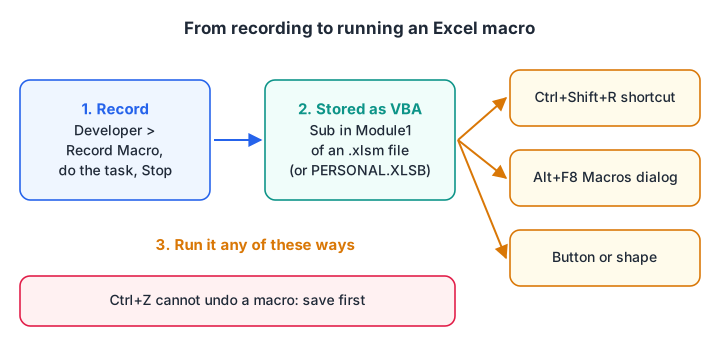
The recorder turns your clicks into VBA; you replay that VBA any way you like.
What does the recorded code look like?
Press Alt+F11 to open the Visual Basic Editor, then open Modules > Module1. You will see something like this:
Sub FormatSalesReport()
'
' FormatSalesReport Macro
' Bold header, blue fill, number format, autofit, freeze top row.
'
' Keyboard Shortcut: Ctrl+Shift+R
'
    Range("A1:F1").Select
    Selection.Font.Bold = True
    With Selection.Interior
        .Pattern = xlSolid
        .PatternColorIndex = xlAutomatic
        .Color = 15652797
        .TintAndShade = 0
        .PatternTintAndShade = 0
    End With
    Columns("F:F").Select
    Selection.NumberFormat = "#,##0"
    Columns("A:F").EntireColumn.AutoFit
    Range("A2").Select
    With ActiveWindow
        .SplitColumn = 0
        .SplitRow = 1
    End With
    ActiveWindow.FreezePanes = True
End Sub
Lines starting with an apostrophe are comments. The recorder copies your mouse, not your intent, so it selects constantly. A hand-tidied version is shorter and leaves your cursor alone:
Sub FormatSalesReport()
    ' Same result as the recording, without selecting cells
    With ActiveSheet
        With .Range("A1:F1")
            .Font.Bold = True
            .Interior.Color = RGB(189, 215, 238)
        End With
        .Columns("F").NumberFormat = "\" & ChrW(8377) & " #,##0"   ' rupee sign, escaped as a literal
        .Columns("A:F").AutoFit
    End With
End Sub
The tidy version also adds the rupee sign. The Visual Basic Editor cannot display ₹, so the code builds it with ChrW(8377), its Unicode number.
The freeze-panes lines were left out because they need an active window; keep the recorded version of that part if you need it. The rest of this series teaches you to write code like the second version: start with Excel VBA basics.
What is the difference between absolute and relative references in macros?
By default the recorder uses absolute references. If you click C5 while recording, the macro will always go to C5, wherever your cursor is when you run it.
Turn on Developer > Use Relative References before recording, and the macro records movement relative to the active cell. Clicking one cell down is saved as "move one row down from here".
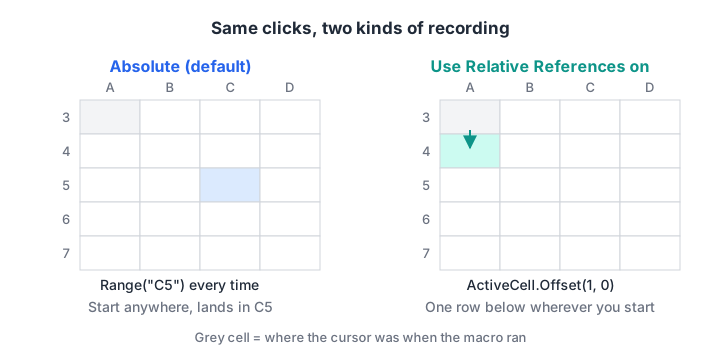
Same clicks, two recordings, two very different macros.
| Absolute (default) | Relative (Use Relative References on) | |
|---|---|---|
| Recorded as | Range("C5").Select |
ActiveCell.Offset(1, 0).Range("A1").Select |
| Runs on | The same cells every time | Cells around wherever you start |
| Good for | Formatting a fixed header or report layout | Repeating a task row by row, such as adding a "Checked" tag beside the current bill |
Quick check
You want a macro that types "Checked" in the cell to the right of whichever cell is selected. What should you turn on before recording?
Relative references record movement from the active cell, so the macro works from any starting cell.
How do you run a macro in Excel?
There are four everyday ways, and you can use all of them for the same macro.
- Keyboard shortcut: the one you set while recording, here Ctrl+Shift+R.
- Macros dialog: press Alt+F8, pick the macro and click Run. The Options button here changes the shortcut later.
- A button on the sheet: described next.
- Quick Access Toolbar: File > Options > Quick Access Toolbar, choose Macros in "Choose commands from", add yours and pick an icon.
Assign a macro to a button
A button is the friendliest option for colleagues who will never open the Macros dialog.
- Choose Developer > Insert, and under Form Controls pick Button.
- Drag on the sheet to draw it. The Assign Macro dialog opens.
- Select
FormatSalesReportand click OK. - Right-click the button, choose Edit Text, and type "Format report".
Any shape works too: right-click it and choose Assign Macro.
How do you save a workbook with macros?
Press F12 (Save As) and choose Excel Macro-Enabled Workbook (*.xlsm) in the file-type list. If you save as a normal .xlsx, Excel warns that "the following features cannot be saved in macro-free workbooks". If you click Yes there, the macros are deleted from the saved file.
| Extension | Name | Holds macros? | Use it for |
|---|---|---|---|
| .xlsx | Excel Workbook | No | Normal files you email out |
| .xlsm | Excel Macro-Enabled Workbook | Yes | Workbooks with macros |
| .xlsb | Excel Binary Workbook | Yes | Very large files; opens and saves faster |
| .xltm | Excel Macro-Enabled Template | Yes | A template that new files start from |
A good habit: keep macros in an .xlsm "tool" workbook and send finished reports as .xlsx.
Quick check
You recorded a macro and saved the workbook as .xlsx, clicking Yes to the warning. What happens to the macro?
.xlsx cannot hold VBA. Clicking Yes saves a macro-free workbook, so the code is lost. Save as .xlsm instead.
What is the Personal Macro Workbook?
Macros stored in This Workbook only work while that file is open. If you want FormatSalesReport in every file you open, record it with Store macro in: Personal Macro Workbook.
Excel creates a hidden file, PERSONAL.XLSB, in its XLSTART folder and opens it every time Excel starts. Say Yes when Excel asks to save it on closing.
To edit them, press Alt+F11 and open VBAProject (PERSONAL.XLSB). Microsoft's guide to saving macros in a single workbook shows the Mac folder path too.
Personal macros live on your PC only, so anything a team depends on belongs in a shared .xlsm.
How do you enable macros safely in Excel?
Macros can do almost anything, which is why attackers hide malware in them. Excel's protections are set in the Trust Center: File > Options > Trust Center > Trust Center Settings > Macro Settings, or click Developer > Macro Security.
| Trust Center option | What happens | When to use |
|---|---|---|
| Disable VBA macros without notification | All macros off, no prompt | You never use macros |
| Disable VBA macros with notification (default) | Macros off; a yellow bar offers Enable Content | Most people |
| Disable VBA macros except digitally signed macros | Only macros signed by a trusted publisher run | Offices with signed company macros |
| Enable VBA macros (not recommended) | Everything runs | Never |
See Microsoft's macro settings page.
Since 2022, Microsoft 365 on Windows also blocks macros in files that came from the internet, such as email attachments and downloads. You see a red Security Risk bar with no Enable button.
If you trust the file and its sender, close it, right-click the file in File Explorer, choose Properties, tick Unblock on the General tab, and reopen it. Microsoft's article on internet macros being blocked describes the rule.
A Trusted Location (Trust Center > Trusted Locations) lets your own macro files open without prompts. Use one folder only you save into, never Downloads.
Safe habits worth keeping:
- Never click Enable Content on an unexpected attachment, even from a known name. Call the sender.
- Read the code (Alt+F11) of any macro file before you trust it.
- Leave "Enable VBA macros" switched off permanently.
Common macro mistakes
- Saving as .xlsx. The macro vanishes; check for .xlsm in the title bar.
- Expecting the recorder to think. It cannot loop through rows, make decisions or handle a different number of rows. That needs written VBA, covered in Excel VBA basics and the five practical macros that follow.
Debugshala teaches Excel macros in class, so if you want guided practice, look at the analyst course Debugshala runs at Old Palasia, with a free demo first.
Key takeaways
- Show the Developer tab via File > Options > Customize Ribbon.
- Record with a plan, a clear name and a Ctrl+Shift shortcut.
- Use relative references when the macro should work from wherever the cursor is.
- Run macros by shortcut, Alt+F8, a button or the Quick Access Toolbar.
- Save as .xlsm, use PERSONAL.XLSB for your own everyday macros, and keep the Trust Center on "with notification".
FAQ
How do I enable macros in Excel?
Open the file and click Enable Content on the yellow Security Warning bar, but only for files you trust. If a red Security Risk bar appears, the file came from the internet; unblock it from the file's Properties dialog first. Leave the Trust Center on "Disable VBA macros with notification" so every new file asks.
Why can't I save my macro in Excel?
You are probably saving as .xlsx, which cannot store VBA code. Choose File > Save As and pick Excel Macro-Enabled Workbook (.xlsm), or Excel Binary Workbook (.xlsb). If the file must stay .xlsx, store the macro in your Personal Macro Workbook instead so it lives on your PC.
Are Excel macros safe?
Macros you recorded or wrote yourself are safe. Macros in files from unknown senders are a common route for malware, because VBA can change files and run programs. That is why Excel disables them by default and blocks macros in internet files. Read the code before enabling, and never use "Enable VBA macros".
Where can I learn Excel macros in Indore?
Debugshala teaches Excel, including recording and running macros, in its Data Analytics and BI Tools courses at the Old Palasia campus. Classes are in English and Hindi, accept non-IT graduates and people with a year gap, and start with a free demo class. For self-practice, try aptitude and coding quizzes on Debugshala Test.
From the team behind this site
Go further with the Data Analytics Course at Debugshala
These tutorials are written by Debugshala, a training and placement institute at Old Palasia, Indore. The classroom course adds live mentoring, real projects and interview preparation.
- Offline classes at Old Palasia, Indore
- Free demo class before you pay
- Non-IT, fresher and year-gap friendly
- Placement assistance
700+ students placed · 200+ hiring partners · 4.9★ Google rating
