

Data Cleaning in Excel: Duplicates, TRIM, Flash Fill, Validation
Data cleaning in Excel step by step: fix spaces and spelling, convert text numbers, fill blanks, remove duplicates, use Flash Fill and add Data Validation.
At the end of the month, Narmada Traders' owner asked for total sales to Jain General Store. The pivot showed three separate lines: "Jain General Store", "jain general store " and "Jain Gen.
Store". The total was right only after someone added them by hand. The same report also counted invoice NT-1002 twice, because it was pasted in from two exports.
Each spelling variant is an inconsistent category. The doubled invoice is a duplicate record. A quantity typed as text is a type error, and an empty Area cell is a missing value. Finding and fixing all four is data cleaning.
Data cleaning in Excel is the process of detecting and correcting inconsistent, incorrect, missing and duplicate values in a worksheet so that the data can be analysed reliably.
Here is a small slice of the messy export. The export lists invoices route by route. Look closely: every row except the first has a problem.
| Invoice | Retailer | Area | Qty | Amount |
|---|---|---|---|---|
| NT-1001 | Sharma Kirana | Vijay Nagar | 12 | 5040 |
| NT-1004 | Sharma Kirana | 10 | 2600 | |
| NT-1002 | jain general store␣ | Palasia | 30 | 4800 |
| NT-1002 | Jain General Store | Palasia | 30 | 4800 |
| NT-1006 | Jain Gen. Store | Palasia | 15 | 6300 |
| NT-1003 | Patel Provision | rajwada | 48 | 6960 |
| NT-1005 | Gupta Mart | Bhawarkuan | '20 | 4600 |
The ␣ marks a trailing space and '20 is a number stored as text. NT-1004's area is blank, but it sits in the Vijay Nagar block like the row above it.
Why does data cleaning matter in Excel?
Excel compares values character by character, so "Palasia" and "Palasia " are different to SUMIFS, lookups and pivots.
The cost shows up quietly. A pivot splits one retailer into three rows, a SUMIFS skips a text quantity, and a duplicate adds ₹4,800 to the month. None of these shows an error message, which is exactly why they are dangerous.
How do you clean data in Excel step by step?
Follow the same order every time. Fixing text before removing duplicates matters, because duplicates only become visible once the spellings match.
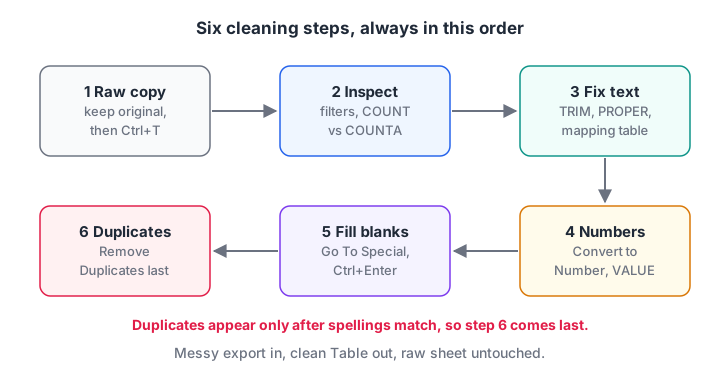
Each step makes the next one possible. Duplicates hide until text is standardised, so removing them comes last.
Step 1: Keep a raw copy and convert to a Table
Copy the export onto a sheet called Raw and never edit it. Work on a second sheet, and press Ctrl+T to make it an Excel Table.
Step 2: Inspect before you change anything
These quick checks find most problems:
- Open each filter dropdown. The list of unique values shows variants such as "Jain Gen. Store" and "Jain General Store" side by side. (The list ignores case, so "rajwada" and "Rajwada" appear as one entry.)
- Compare COUNT and COUNTA on number columns.
=COUNTA(Clean[Qty])-COUNT(Clean[Qty])tells you how many quantities are text. - Highlight duplicates. Select the Invoice column, then Home > Conditional Formatting > Highlight Cells Rules > Duplicate Values.
- Count blanks with
=COUNTBLANK(Clean[Area]).
Step 3: Fix spaces, case and spelling variants
Add a helper column with =PROPER(TRIM([@Retailer])), then copy it and Paste Special > Values over the original column. The text and date functions tutorial explains each function in detail.
TRIM and PROPER fix "jain general store " but not "Jain Gen. Store". For abbreviations, use Find and Replace (Ctrl+H) with Match entire cell contents ticked, so you replace only that exact value.
When there are many variants, keep a small mapping table and look the correct name up:
| Variant | Standard name |
|---|---|
| Jain Gen. Store | Jain General Store |
| Sharma Kirana Stores | Sharma Kirana |
=XLOOKUP(PROPER(TRIM([@Retailer])), Map[Variant], Map[Standard name], PROPER(TRIM([@Retailer])))The fourth argument returns the cleaned original when no mapping exists. The XLOOKUP tutorial covers that pattern.
Step 4: Convert numbers stored as text
Numbers stored as text sit on the left of the cell and often show a small green triangle. SUM and SUMIFS skip them without warning.
- Select the column, click the warning icon and choose Convert to Number.
- If there is no icon, use Data > Text to Columns and click Finish straight away. Excel re-reads each value as a number.
- In a formula, wrap the value in
VALUE()or multiply it by 1.
After converting, =COUNT(Clean[Qty]) should equal the number of rows.
Step 5: Fill blanks with Go To Special
To fill each blank with the value above it:
- Select the Area column.
- Press F5, click Special, choose Blanks and click OK. Only the empty cells stay selected.
- Type
=and press the Up arrow, so the formula points at the cell above. - Press Ctrl+Enter to enter that formula in every selected blank at once.
- Copy the column and paste it as values, so the formulas become fixed text.
Fill down only when a blank genuinely means "same as above", never when it means "unknown".
Step 6: Remove duplicate rows
Go to Data > Data Tools > Remove Duplicates, tick the columns that define a duplicate, and click OK. Excel deletes the extra rows and reports how many it removed. Microsoft's guide to filtering for unique values or removing duplicates describes both options.
Ticking only Invoice removes any second row with that invoice number. Ticking every column removes only exact copies, which is safer when one invoice has several product lines.
Remove Duplicates permanently deletes rows. If you would rather keep the data and view a clean list, Microsoft 365's UNIQUE returns one without touching the source:
=UNIQUE(Clean[[Invoice]:[Amount]])        → six distinct rows, once steps 3 to 5 are done
=COUNTIFS(Clean[Invoice], [@Invoice])>1    → TRUE flags a repeated invoice
Quick check
Why should you fix spaces and spelling before using Remove Duplicates?
Remove Duplicates compares values exactly. "Jain General Store " with a trailing space is a different value, so the duplicate survives until the text is cleaned.
Quick check
You select the Area column, press F5 > Special > Blanks, type =, press Up arrow and then Ctrl+Enter. What happens?
Ctrl+Enter enters the same relative formula into all selected cells, so each blank copies the value directly above it.
Flash Fill: clean by example
Flash Fill fills a column by spotting the pattern in one or two examples you type. It needs no formula at all.
Suppose you want the area code from references such as NT-1001/VN/2026. Type VN beside the first row, move to the next cell and press Ctrl+E (or Data > Flash Fill). Excel fills the rest.
Flash Fill has two catches. Its result is static, so it does not update when the source changes, and on irregular data it can guess the wrong pattern.
| Need | Flash Fill | Formula |
|---|---|---|
| One-off cleanup | Best choice | Works |
| Data that changes every week | Must redo by hand | Updates automatically |
| Irregular patterns | May guess wrong | Precise but harder to write |
Prevent bad data with Data Validation
Cleaning fixes yesterday's mistakes. Data Validation stops tomorrow's by limiting what can be typed into a cell.
To give the Area column a dropdown of the five allowed areas:
- Type the area names in a small Table on a Lists sheet.
- Select the Area column in the sales Table.
- Go to Data > Data Validation, set Allow to List and point Source at the area names.
- On the Error Alert tab, choose Stop and write a message such as "Pick an area from the list."
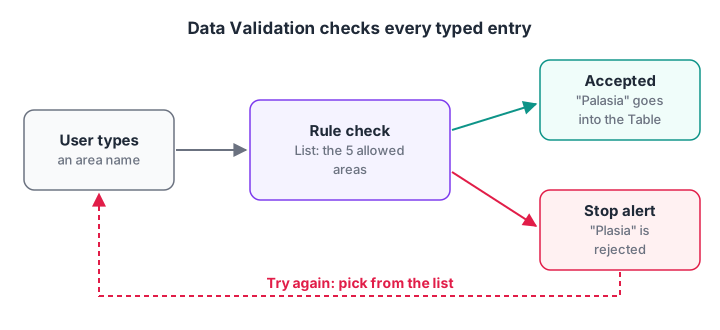
Validation checks each entry when it is typed. Invalid values are stopped before they reach your reports.
Other useful rules include Whole number greater than 0 for Qty, Date between the start and end of the financial year, and Text length equal to 10 for phone numbers.
Validation does not check data that is pasted in or already there. After setting a rule on old data, use Data > Data Validation > Circle Invalid Data to mark existing values that break it.
The same cleaning in pandas
For files too large or too frequent for manual cleaning, the same six steps take a few lines of pandas. This block cleans the messy slice above.
import pandas as pd

raw = pd.DataFrame({
    "Invoice": ["NT-1001", "NT-1004", "NT-1002", "NT-1002", "NT-1006", "NT-1003", "NT-1005"],
    "Retailer": ["Sharma Kirana", "Sharma Kirana", "jain general store ", "Jain General Store",
                 "Jain Gen. Store", "Patel Provision", "Gupta Mart"],
    "Area": ["Vijay Nagar", None, "Palasia", "Palasia", "Palasia", "rajwada", "Bhawarkuan"],
    "Qty": [12, 10, 30, 30, 15, 48, "20"],
    "Amount": [5040, 2600, 4800, 4800, 6300, 6960, 4600],
})
df = raw.copy()                                               # step 1: keep raw
df["Retailer"] = df["Retailer"].str.strip().str.title()      # step 3: TRIM + PROPER
df["Retailer"] = df["Retailer"].replace({"Jain Gen. Store": "Jain General Store"})
df["Area"] = df["Area"].str.title().ffill()                   # step 5: fill down
df["Qty"] = pd.to_numeric(df["Qty"])                          # step 4: text to number
df = df.drop_duplicates()                                     # step 6: Remove Duplicates

print(df.to_string(index=False))
print("Rows:", len(raw), "->", len(df), "| Qty total:", df["Qty"].sum())
The data cleaning with pandas tutorial goes much further. For a weekly import that needs the same steps every time, Power Query in Excel records them once and replays them on each new file.
Common data cleaning mistakes
- Cleaning the only copy. Without the Raw sheet, you cannot check what changed or undo a bad step.
- Removing duplicates before fixing text. Variants with extra spaces survive as "unique" rows.
- Leaving helper formulas in place. Paste values once a column is clean, or deleting the source later breaks everything.
- Filling down blanks that mean unknown. You invent data that was never recorded.
- Trusting Flash Fill blindly. Spot-check the first, middle and last rows.
For quick logic and aptitude drills that analyst interviews include, take a practice test on Debugshala Test.
Debugshala teaches Excel cleaning on business datasets in its Indore data analytics classroom batches, which start with a free demo class.
Key takeaways
- Dirty data gives wrong answers without error messages, so clean before you analyse.
- Work in order: raw copy, inspect, text, numbers, blanks, duplicates.
- TRIM, PROPER, Find and Replace and a mapping table fix most name variants.
- Go To Special > Blanks with Ctrl+Enter fills gaps in seconds.
- Remove Duplicates is permanent;
UNIQUEis the non-destructive option in Microsoft 365. - Data Validation prevents the same errors from coming back.
FAQ
How do I remove duplicates in Excel without deleting data?
Use =UNIQUE(range) in Microsoft 365 or Excel 2021 and later. It returns a distinct list in new cells and leaves the original untouched. In older versions, use Data > Advanced filter with "Unique records only" and copy to another location, or flag repeats with COUNTIFS.
What is the fastest way to clean data in Excel?
For a one-off file, use TRIM and PROPER helper columns, Flash Fill and then Remove Duplicates. For a file you receive every week, use Power Query, which records the steps and replays them on each new file.
Why is Excel not adding up my numbers?
The values are probably numbers stored as text, often from a CSV or a web export. They sit on the left of the cell and may show a green triangle. Select them and choose Convert to Number, or use Text to Columns and press Finish. Then check that COUNT equals COUNTA.
Does Flash Fill update automatically?
No. Flash Fill writes fixed values, not formulas, so it does not change when the source column changes. Run it again after new data arrives, or use a formula such as TEXTBEFORE or MID when the column must stay up to date.
From the team behind this site
Go further with the Data Analytics Course at Debugshala
These tutorials are written by Debugshala, a training and placement institute at Old Palasia, Indore. The classroom course adds live mentoring, real projects and interview preparation.
- Offline classes at Old Palasia, Indore
- Free demo class before you pay
- Non-IT, fresher and year-gap friendly
- Placement assistance
700+ students placed · 200+ hiring partners · 4.9★ Google rating
