

Excel Text and Date Functions for Cleaning Data: TRIM to EOMONTH
Excel text and date functions for messy exports: TRIM, PROPER, MID, TEXTSPLIT, SUBSTITUTE, date serials, EOMONTH, NETWORKDAYS and the Indian financial year.
The billing software at Narmada Traders exports a sheet that nobody would call neat. Retailer names arrive as " sharma kirana ". The invoice reference packs three facts into one cell, "NT-1001/VN/2026". Phone numbers come with spaces and a +91, and some dates are real dates while others are text like "15.04.2026".
Before any SUMIFS or pivot can trust this sheet, each of those columns needs fixing. You could retype them, but at 300 rows a day that is a full-time job.
The messy cells are text strings. Cutting a piece out of one is extraction, and joining pieces is concatenation. Turning "15.04.2026" into a value Excel understands is date conversion. Excel has a function for each step.
Excel text functions are built-in functions that clean, extract, replace and join characters in text cells, and Excel date functions create, split and calculate with dates, which Excel stores as serial numbers.
How do you clean text in Excel?
Start with the functions that fix spacing and case. They are the ones you will use on almost every imported file.
| Function | What it does | Example | Result |
|---|---|---|---|
TRIM |
Removes leading and trailing spaces and squeezes inner runs to one space | =TRIM(" sharma kirana ") |
sharma kirana |
PROPER |
Capitalises the first letter of each word | =PROPER("sharma kirana") |
Sharma Kirana |
UPPER / LOWER |
Changes all letters to upper or lower case | =UPPER("vn") |
VN |
CLEAN |
Removes non-printing characters such as line breaks | =CLEAN(A2) |
text on one line |
LEN |
Counts characters, spaces included | =LEN("P103 ") |
5 |
Combine them in one formula and the name column is fixed in a single step:
=PROPER(TRIM([@[Raw Name]]))
"  sharma   kirana "  →  Sharma Kirana
"JAIN general STORE"  →  Jain General Store
LEN is your detective. If two keys look identical but a lookup fails, compare their lengths. A difference of one usually means a hidden space.
How do you extract part of a text string?
LEFT, RIGHT and MID
These cut characters by position. They work when every value has the same layout.
=LEFT("NT-1001/VN/2026", 7)        → NT-1001
=RIGHT("NT-1001/VN/2026", 4)       → 2026
=MID("NT-1001/VN/2026", 9, 2)      → VN
MID(text, start, count) starts at character 9 and takes 2. Count positions carefully: the first slash is character 8.
FIND and SEARCH for variable lengths
When the pieces vary in length, find the separator first. FIND is case-sensitive; SEARCH is not and accepts wildcards.
=FIND("/", "NT-1001/VN/2026")                         → 8
=LEFT([@Ref], FIND("/", [@Ref]) - 1)                  → NT-1001
This pattern works in every Excel version, including 2016 and 2019.
TEXTBEFORE, TEXTAFTER and TEXTSPLIT
Microsoft 365 and Excel 2024 have three functions that make the FIND arithmetic unnecessary. Microsoft's TEXTSPLIT page lists the supported versions.
=TEXTBEFORE([@Ref], "/")              → NT-1001
=TEXTAFTER([@Ref], "/", -1)           → 2026      (-1 = after the last slash)
=TEXTBEFORE(TEXTAFTER([@Ref], "/"), "/")   → VN
=TEXTSPLIT([@Ref], "/")               → NT-1001 | VN | 2026   (spills across)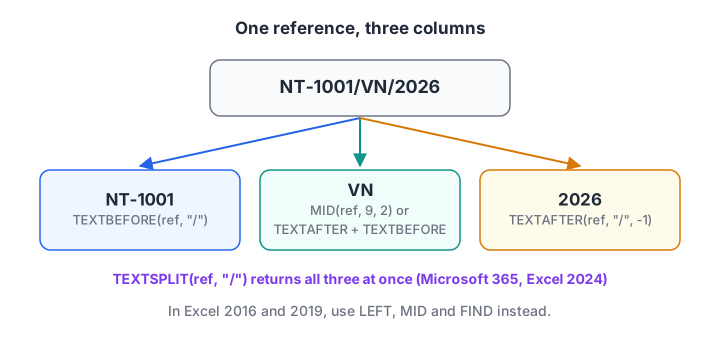
One packed reference becomes three clean columns. TEXTSPLIT does all three at once; LEFT and FIND do it in older versions.
SUBSTITUTE for find-and-replace inside a formula
SUBSTITUTE(text, old, new) swaps every occurrence of a piece of text. Combine it with RIGHT to standardise phone numbers to ten digits:
=RIGHT(SUBSTITUTE([@Phone], " ", ""), 10)
"+91 98260 12345"  →  9826012345
"098260 54321"     →  9826054321
Quick check
What does =MID("NT-1001/VN/2026", 9, 2) return?
Character 9 is the V after the first slash, and MID takes 2 characters from there.
How do you join text in Excel?
The & operator glues pieces together. Use it for labels and composite keys.
=[@Retailer] & " (" & [@Area] & ")"        → Sharma Kirana (Vijay Nagar)
=[@Retailer] & "|" & [@Product]            → Sharma Kirana|Atta 10kg
TEXTJOIN (2019 and later) joins a whole range with a separator and can skip blanks. In Microsoft 365 it combines with FILTER to list every product one retailer bought:
=TEXTJOIN(", ", TRUE, FILTER(Sales[Product], Sales[Retailer]="Sharma Kirana"))
→ Atta 10kg, Tea 500g, Sunflower Oil 1L
TEXT(value, format) turns a number or date into formatted text, which is handy inside labels: ="Total: ₹" & TEXT(47040, "#,##0") gives Total: ₹47,040. Remember the result is text, so do not sum it afterwards.
How does Excel store dates?
Excel stores a date as the number of days since its starting point, so 1 January 1900 is serial number 1. Times are fractions of a day: noon is 0.5. The cell format only decides how that number looks.
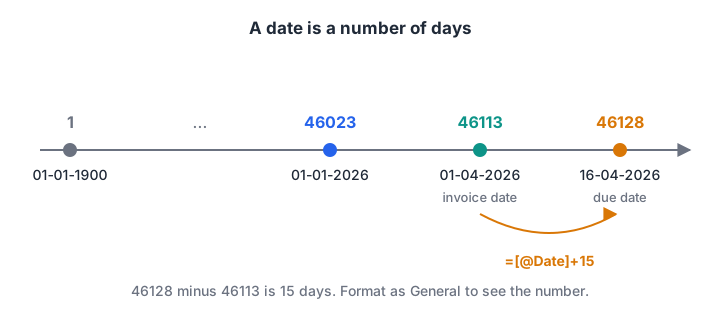
Because a date is a number, a due date is just addition and days overdue is just subtraction.
Format a cell holding 01-04-2026 as General and you see 46113. That is why =[@Date]+15 gives the due date for 15-day credit, and why =DATE(2026,11,13)-[@Due] gives days overdue.
Building and splitting dates
| Formula | Result for 01-04-2026 |
|---|---|
=DATE(2026, 4, 1) |
01-04-2026 |
=YEAR([@Date]) / =MONTH([@Date]) / =DAY([@Date]) |
2026 / 4 / 1 |
=TEXT([@Date], "mmm-yy") |
Apr-26 |
=TEXT([@Date], "dddd") |
Wednesday |
=EOMONTH([@Date], 0) |
30-04-2026 (month end) |
=EDATE([@Date], 1) |
01-05-2026 (same day next month) |
=WEEKDAY([@Date], 2) |
3 (Monday = 1) |
TODAY() returns the current date and updates every time the file recalculates. Use it for live ageing reports, and a fixed date for reports that must not change.
Working days and date differences
=NETWORKDAYS(DATE(2026,4,1), DATE(2026,4,30))              → 22
=NETWORKDAYS(DATE(2026,4,1), DATE(2026,4,30), Holidays)     → fewer, after your holiday list
=DATEDIF(DATE(2026,4,1), DATE(2026,11,13), "m")            → 7   (whole months)
NETWORKDAYS counts Monday to Friday and skips dates in an optional holiday range. If your shop closes only on Sundays, NETWORKDAYS.INTL(start, end, 11) treats Sunday alone as the weekend.
Financial year in India
Indian financial years run from 1 April to 31 March. The expression MONTH(date)>=4 is TRUE (1) from April onwards, so adding it to the year gives the year in which that financial year ends.
=YEAR([@Date]) + (MONTH([@Date])>=4)                       → 2027 for 01-04-2026
="FY " & (YEAR([@Date])-(MONTH([@Date])<4)) & "-" & RIGHT(YEAR([@Date])-(MONTH([@Date])<4)+1, 2)
→ FY 2026-27
Quick check
A cell shows 15-04-2026 but =ISNUMBER(A2) returns FALSE. What is true?
Real dates are serial numbers, so ISNUMBER returns TRUE for them. FALSE means the cell holds text that only looks like a date.
Converting text dates into real dates
Dates that arrive as text sit on the left of the cell and refuse to sort properly. Convert them before analysis.
- Check first.
=ISNUMBER([@Date])returns FALSE for a text date. - For a fixed layout, rebuild the date from its pieces:
=DATE(RIGHT(A2,4), MID(A2,4,2), LEFT(A2,2))turns15.04.2026into 15 April 2026. - For a whole column, use Data > Text to Columns, choose Delimited, then on step 3 set the column format to Date: DMY.
- Format the result as
dd-mm-yyyyso everyone reads it the same way.
The same cleaning in pandas
pandas has a .str accessor for text and to_datetime for dates. This block repeats the name, reference and financial-year steps, and converts an Excel serial number back to a date.
import pandas as pd

raw = pd.DataFrame({
    "Ref": ["NT-1001/VN/2026", "NT-1002/PL/2026", "NT-1003/RW/2026"],
    "Name": ["  sharma   kirana ", "JAIN general STORE", "patel provision"],
    "DateText": ["01.04.2026", "15.04.2026", "02.03.2026"],
})

# =PROPER(TRIM(name)): split() also squeezes inner spaces like TRIM
raw["Retailer"] = raw["Name"].str.split().str.join(" ").str.title()
# =TEXTSPLIT(ref, "/")
raw[["Invoice", "AreaCode", "Year"]] = raw["Ref"].str.split("/", expand=True)
# =DATE(RIGHT(A2,4), MID(A2,4,2), LEFT(A2,2))
raw["Date"] = pd.to_datetime(raw["DateText"], format="%d.%m.%Y")
# =YEAR(d)+(MONTH(d)>=4)  -> year in which the financial year ends
raw["FY_end"] = raw["Date"].dt.year + (raw["Date"].dt.month >= 4).astype(int)

print(raw[["Invoice", "AreaCode", "Retailer", "FY_end"]].to_string(index=False))
print(raw["Date"].dt.strftime("%d-%m-%Y").tolist())
print("Serial 46113 is", (pd.Timestamp("1899-12-30") + pd.Timedelta(days=46113)).date())
The pandas origin is 30 December 1899 because Excel counts 1900 as a leap year for compatibility with old spreadsheet software. Microsoft documents this quirk, and it only affects dates before March 1900. See data cleaning with pandas for more.
Common mistakes with text and date functions
- Summing text numbers. LEFT, MID and TEXTSPLIT return text, even for digits. Wrap them in
VALUE()or add--before using them in maths. - Forgetting the non-breaking space. Web exports often contain character 160, which TRIM leaves alone. Use
SUBSTITUTE(A2, CHAR(160), " ")first. - Formatting instead of converting. Changing a text date's format does nothing. It must become a number first.
- Using TODAY() in a frozen report. Last month's ageing report will show different numbers tomorrow. Paste a fixed date.
Text puzzles like these reward careful, step-by-step reasoning, which you can sharpen with the timed reasoning quizzes on Debugshala Test.
Key takeaways
- TRIM, PROPER and CLEAN fix spacing and case; LEN reveals hidden characters.
- LEFT, MID, RIGHT and FIND split text in every version; TEXTBEFORE, TEXTAFTER and TEXTSPLIT do it faster in Microsoft 365 and Excel 2024.
- Dates are serial numbers, so due dates and ageing are simple arithmetic.
- Build dates with
DATE()to avoid regional dd/mm vs mm/dd surprises. YEAR(d)+(MONTH(d)>=4)gives the Indian financial year.
Next, the data cleaning in Excel tutorial puts these functions into a complete cleaning routine alongside Remove Duplicates and Flash Fill.
FAQ
How do I remove extra spaces in Excel?
Use =TRIM(A2). It removes spaces at the start and end and reduces repeated inner spaces to one. If spaces remain, they are probably non-breaking spaces from a web page, so use =TRIM(SUBSTITUTE(A2,CHAR(160)," ")). Then copy the result and paste it as values over the original.
How do I split text into columns in Excel?
In Microsoft 365 and Excel 2024, use =TEXTSPLIT(A2,"/"), which spills each piece into its own column. In older versions, use Data > Text to Columns with a delimiter, or combine LEFT, MID and FIND. For a repeating monthly job, Power Query can split columns and remember the steps.
Why does Excel show my date as a number?
Because Excel stores dates as serial numbers, and that cell is formatted as General or Number. Select it, press Ctrl+1 and choose a Date format such as dd-mm-yyyy. The value does not change; only its display does, so formulas using it keep working.
How do I calculate the financial year from a date in Excel?
For India's April to March year, use =YEAR(A2)+(MONTH(A2)>=4) to get the ending year, so 1 April 2026 gives 2027. For a label such as "FY 2026-27", combine the start year, a hyphen and the last two digits of the next year using & and RIGHT.
Where in Indore can I learn Excel with guidance?
Debugshala is an IT training and placement institute at Old Palasia, Indore, focused on data, AI and full stack development. Excel is part of its Data Analytics programme, taught in English and Hindi, which accepts learners from non-IT backgrounds and people with a year gap, and starts with a free demo class.
From the team behind this site
Go further with the Data Analytics Course at Debugshala
These tutorials are written by Debugshala, a training and placement institute at Old Palasia, Indore. The classroom course adds live mentoring, real projects and interview preparation.
- Offline classes at Old Palasia, Indore
- Free demo class before you pay
- Non-IT, fresher and year-gap friendly
- Placement assistance
700+ students placed · 200+ hiring partners · 4.9★ Google rating
