

Automate Excel Reports with VBA: 5 Practical Macros to Use
Five ready-to-adapt VBA macros that clean data, build a summary, split sheets by area, refresh queries and export a dated PDF, run from one safe master button.
At the end of every month, the sales coordinator of an Indore FMCG distributor gets one export from the billing software and a message from the owner: "Report by 11 o'clock." Then the routine starts. Clean the sheet. Total each area. Make a separate tab for each area's salesman. Refresh the pivot tables. Save a PDF for WhatsApp.
Done by hand, it is a two-hour job with a fresh chance of error each time. Done by macros, it is one button and about ten seconds.
Think of it as an assembly line in a small factory. Each station does one job well: one washes, one cuts, one packs. A supervisor starts the line, keeps it moving, and stops it safely if a station jams.
In VBA each station is a Sub procedure, the supervisor is a master macro that calls them in order, and the safety switch is an error handler.
VBA report automation means splitting a repetitive Excel reporting routine into small, single-purpose macros and running them in sequence from one master macro, so the report is produced the same way every time.
This article builds on Excel VBA basics (variables, loops, the Range object, error handling). If any line below looks unfamiliar, that article explains it.
How should you structure an Excel automation workbook?
Keep one macro-enabled tool workbook (MonthlyReport.xlsm) with these sheets:
| Sheet | Contents |
|---|---|
Sales |
Raw export pasted here: A Date, B Area, C Product, D Amount (₹) |
Summary |
Built by macro 2 |
| One sheet per area | Built by macro 3 |
Dashboard |
Pivot tables and charts, as in Excel charts and dashboards |
Put all the code in one standard module (Insert > Module in the VBE) that begins with Option Explicit. Save the file as .xlsm, as the Excel macros tutorial explains.
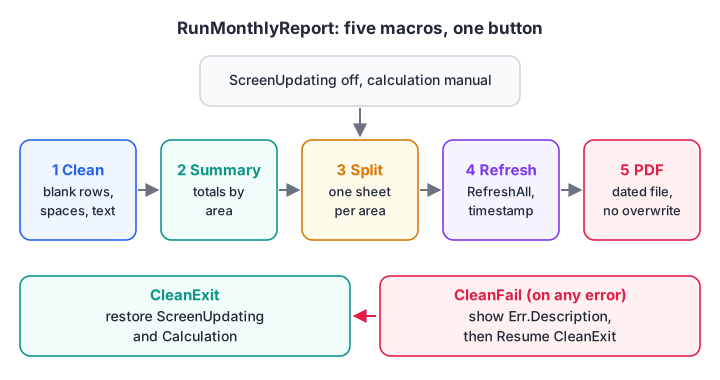
One master macro, five stations, one safety net.
First, one helper function. Several macros need a sheet that may or may not exist yet, so this function returns it, creating it only if it is missing. It never deletes a sheet.
Option Explicit

Function GetOrCreateSheet(ByVal sheetName As String) As Worksheet
    Dim ws As Worksheet
    On Error Resume Next                ' only this one lookup may fail
    Set ws = ThisWorkbook.Worksheets(sheetName)
    On Error GoTo 0                     ' normal error handling again
    If ws Is Nothing Then
        Set ws = ThisWorkbook.Worksheets.Add( _
                 After:=ThisWorkbook.Worksheets(ThisWorkbook.Worksheets.Count))
        ws.Name = sheetName
    End If
    Set GetOrCreateSheet = ws
End Function
This is the one acceptable use of On Error Resume Next: wrapped around a single line you expect might fail, and switched off immediately after.
Macro 1: How do you clean imported data with VBA?
Billing exports arrive with blank rows, trailing spaces in names and numbers stored as text. This macro fixes all three.
Sub CleanImportedData()
    Dim ws As Worksheet, cell As Range
    Dim r As Long, lastRow As Long

    Set ws = ThisWorkbook.Worksheets("Sales")
    lastRow = ws.Cells(ws.Rows.Count, "A").End(xlUp).Row

    ' Remove fully blank rows, bottom-up so row numbers do not shift
    For r = lastRow To 2 Step -1
        If Application.WorksheetFunction.CountA(ws.Rows(r)) = 0 Then
            ws.Rows(r).Delete
        End If
    Next r
    lastRow = ws.Cells(ws.Rows.Count, "A").End(xlUp).Row

    ' Trim spaces in Area and Product
    For Each cell In ws.Range("B2:C" & lastRow)
        If VarType(cell.Value) = vbString Then cell.Value = Trim$(cell.Value)
    Next cell

    ' Turn "18400" stored as text into the number 18400
    For Each cell In ws.Range("D2:D" & lastRow)
        If VarType(cell.Value) = vbString Then
            If IsNumeric(cell.Value) Then cell.Value = CDbl(cell.Value)
        End If
    Next cell
End Sub
Two details matter. Deleting rows from the bottom up avoids skipping a row when the rows below move up. And the date column is left alone on purpose: rewriting dd-mm-yyyy text from VBA can swap day and month. Fix dates with Power Query's locale setting instead, as shown in Power Query in Excel.
Row deletion cannot be undone with Ctrl+Z, so run new macros on a copy of the file first.
Quick check
Why does CleanImportedData delete blank rows in a loop that runs from the last row up to row 2?
When row 5 is deleted, row 6 becomes row 5. A top-down loop then moves to row 6 and misses it. Going bottom-up avoids the problem.
Macro 2: How do you build a summary table with VBA?
This macro totals Amount by Area using a Dictionary, a fast key-to-value store, and writes a sorted table to the Summary sheet.
Sub BuildAreaSummary()
    Dim src As Worksheet, outWs As Worksheet
    Dim totals As Object, key As Variant
    Dim r As Long, lastRow As Long, outRow As Long

    Set src = ThisWorkbook.Worksheets("Sales")
    Set outWs = GetOrCreateSheet("Summary")
    Set totals = CreateObject("Scripting.Dictionary")   ' Windows only

    lastRow = src.Cells(src.Rows.Count, "A").End(xlUp).Row
    For r = 2 To lastRow
        key = src.Cells(r, "B").Value
        totals(key) = totals(key) + src.Cells(r, "D").Value
    Next r

    outWs.Cells.Clear
    outWs.Range("A1:B1").Value = Array("Area", "Amount")
    outRow = 2
    For Each key In totals.Keys
        outWs.Cells(outRow, "A").Value = key
        outWs.Cells(outRow, "B").Value = totals(key)
        outRow = outRow + 1
    Next key

    outWs.Range("A1").CurrentRegion.Sort Key1:=outWs.Range("B1"), _
        Order1:=xlDescending, Header:=xlYes
    outWs.Range("B2:B" & outRow - 1).NumberFormat = "#,##0"
    outWs.Columns("A:B").AutoFit
End Sub
On the 12-row sample from the dashboard article, the Summary sheet shows:
| Area | Amount (₹) |
|---|---|
| Palasia | 61,300 |
| Vijay Nagar | 61,100 |
| Rajwada | 46,400 |
Scripting.Dictionary comes from a Windows library, so this macro does not run on Excel for Mac. On a Mac, write =SUMIFS() formulas into the summary instead, or use a pivot table. In recent Microsoft 365 builds, the GROUPBY function can produce this table with a single formula.
Macro 3: How do you split data into separate sheets by area?
Each area salesman wants only his own rows. This macro filters the data once per area and copies the visible rows to that area's sheet.
Sub SplitByArea()
    Dim src As Worksheet, target As Worksheet
    Dim areas As Object, area As Variant
    Dim r As Long, lastRow As Long

    Set src = ThisWorkbook.Worksheets("Sales")
    Set areas = CreateObject("Scripting.Dictionary")
    lastRow = src.Cells(src.Rows.Count, "A").End(xlUp).Row

    For r = 2 To lastRow                      ' collect unique area names
        areas(CStr(src.Cells(r, "B").Value)) = True
    Next r

    If src.AutoFilterMode Then src.AutoFilterMode = False
    For Each area In areas.Keys
        Set target = GetOrCreateSheet(Left$(area, 31))   ' sheet names max 31 chars
        target.Cells.Clear
        src.Range("A1").CurrentRegion.AutoFilter Field:=2, Criteria1:=area
        src.Range("A1").CurrentRegion.SpecialCells(xlCellTypeVisible).Copy _
            Destination:=target.Range("A1")
        target.Columns("A:D").AutoFit
    Next area
    src.AutoFilterMode = False
End Sub
Existing area sheets are cleared and refilled, never deleted, so any notes a salesman keeps on other sheets survive. Sheet names cannot contain / \ ? * [ ] :; clean area names first if your data has them.
Macro 4: How do you refresh all data and add a timestamp?
Pivot tables and Power Query outputs do not update by themselves. This macro refreshes everything and stamps the time so readers know how fresh the numbers are.
Sub RefreshAndStamp()
    ThisWorkbook.RefreshAll
    Application.CalculateUntilAsyncQueriesDone   ' wait for background queries
    With ThisWorkbook.Worksheets("Dashboard").Range("B1")
        .Value = "Last refreshed: " & Format(Now, "dd-mmm-yyyy hh:mm")
        .Font.Italic = True
    End With
End Sub
If a pivot table still shows old numbers after this runs, it refreshed before its query finished. Open Data > Queries & Connections, right-click the query, choose Properties and untick Enable background refresh. Then RefreshAll waits for each query in turn.
Macro 5: How do you export an Excel sheet to PDF with VBA?
The owner wants a PDF he can forward. This macro saves the Dashboard sheet next to the workbook with a date and time in the name, so it never overwrites an earlier report.
Sub ExportReportPdf()
    Dim pdfPath As String

    If ThisWorkbook.Path = "" Or Left$(ThisWorkbook.Path, 4) = "http" Then
        MsgBox "Save this workbook to a local folder first.", vbInformation
        Exit Sub
    End If

    pdfPath = ThisWorkbook.Path & Application.PathSeparator & _
              "Sales_Report_" & Format(Now, "yyyy-mm-dd_hhmm") & ".pdf"

    ThisWorkbook.Worksheets("Dashboard").ExportAsFixedFormat _
        Type:=xlTypePDF, Filename:=pdfPath, _
        Quality:=xlQualityStandard, OpenAfterPublish:=False

    MsgBox "PDF saved:" & vbCrLf & pdfPath, vbInformation
End Sub
The path check matters. A new, unsaved workbook has an empty Path, and a workbook opened from OneDrive or SharePoint can report a web address, where the export fails.
Application.PathSeparator keeps the code working on Mac as well as Windows. Set the print area and Page Layout > Orientation > Landscape on the Dashboard sheet once, and the PDF follows it.
How do you run all the macros with one button?
The master macro runs the five stations in order. It turns off screen updating and automatic calculation for speed, and its error handler puts both back however the run ends.
Sub RunMonthlyReport()
    Dim oldCalc As XlCalculation
    oldCalc = Application.Calculation

    On Error GoTo CleanFail
    Application.ScreenUpdating = False
    Application.Calculation = xlCalculationManual

    CleanImportedData
    BuildAreaSummary
    SplitByArea
    Application.Calculation = oldCalc      ' formulas must be live before refresh
    RefreshAndStamp
    ExportReportPdf

CleanExit:
    Application.ScreenUpdating = True
    Application.Calculation = oldCalc
    Exit Sub

CleanFail:
    MsgBox "Report stopped. Error " & Err.Number & ": " & Err.Description, vbExclamation
    Resume CleanExit
End Sub
Resume CleanExit jumps back to the tidy-up block after showing the error. Without it, a crash in macro 3 would leave Excel in manual calculation, and every formula in every open workbook would stop updating until someone noticed.
Draw a button on the Dashboard (Developer > Insert > Form Controls > Button) and assign RunMonthlyReport to it.
Check the macros' logic in pandas
Before trusting a new macro, compare its output with an independent calculation. This pandas version reproduces macros 2 and 3 on the same sample.
import pandas as pd

sales = pd.DataFrame({
    "Area": ["Vijay Nagar", "Palasia", "Rajwada", "Vijay Nagar", "Palasia", "Rajwada",
             "Vijay Nagar", "Palasia", "Rajwada", "Vijay Nagar", "Palasia", "Rajwada"],
    "Product": ["Atta 10kg", "Toor Dal 1kg", "Sugar 5kg", "Sunflower Oil 1L",
                "Atta 10kg", "Toor Dal 1kg", "Atta 10kg", "Sugar 5kg",
                "Sunflower Oil 1L", "Toor Dal 1kg", "Atta 10kg", "Atta 10kg"],
    "Amount": [18400, 9600, 7200, 12600, 21500, 8800,
               19900, 6400, 14100, 10200, 23800, 16300],
})

# Macro 2: area summary, largest first
summary = sales.groupby("Area")["Amount"].sum().sort_values(ascending=False)
print(summary)
print("Grand total:", summary.sum())

# Macro 3: one "sheet" (DataFrame) per area
sheets = {area: rows.reset_index(drop=True) for area, rows in sales.groupby("Area")}
for area, rows in sheets.items():
    print(f"\n--- {area}: {len(rows)} rows ---")
    print(rows[["Product", "Amount"]].to_string(index=False))
If the totals match the Summary sheet, the macro is right. The pandas approach is covered in pandas groupby and pivot tables.
Quick check
In RunMonthlyReport, what does "Resume CleanExit" in the error handler make sure of?
Resume CleanExit jumps to the tidy-up block, which turns screen updating back on and restores the calculation mode, even after an error.
Safe automation habits
- Test on a copy. Macro actions cannot be undone.
- Never delete what you can clear. These macros clear and refill sheets; none removes files.
- Qualify every range with a worksheet variable so a stray click cannot redirect the macro.
- Keep the tool and the output apart. Share the PDF or an .xlsx copy, not the .xlsm.
- Read macros you receive before enabling them, and keep the Trust Center on "Disable VBA macros with notification".
Automating reports is one of the tasks described in what a data analyst does. Debugshala teaches Excel automation with macros as part of the analyst course at Debugshala that welcomes non-IT graduates.
Key takeaways
- Split a report into small Subs that each do one job, and call them from one master macro.
- Use a GetOrCreateSheet helper so macros clear and refill sheets instead of deleting them.
- Delete rows bottom-up, and leave date fixing to Power Query.
- Wait for queries with CalculateUntilAsyncQueriesDone or turn off background refresh.
- Always restore ScreenUpdating and Calculation in an error-safe exit block.
FAQ
Can VBA automate Excel reports completely?
Yes, for most monthly or daily reports built inside Excel. VBA can clean data, build summaries, refresh pivots and Power Query, and export PDFs. The part it should not do alone is judging the numbers, so keep a quick human check before the report goes out, and compare totals against the source.
How do I make my VBA macro run faster?
Turn off screen updating and set calculation to manual at the start, then restore both at the end, as RunMonthlyReport does. Avoid Select and Activate, read and write ranges in blocks instead of cell by cell where possible, and loop only over the used rows found with End(xlUp).
Do these VBA macros work on Excel for Mac?
Most of them do. The Dictionary used in macros 2 and 3 comes from a Windows library, so replace it with a Collection or worksheet formulas on a Mac. ExportAsFixedFormat and Application.PathSeparator work on both, though Mac Excel may ask for folder permission the first time it saves.
Should I learn VBA or Python for Excel automation?
Learn VBA if your work stays inside Excel and colleagues need a button they can click. Learn Python with pandas if the data is large, comes from databases, or the output goes beyond Excel. Many analysts use both: Python for heavy processing and VBA for the last mile inside the workbook.
Where can I learn Excel report automation in Indore?
Debugshala teaches Excel, including macros, in its Data Analytics and BI Tools courses at the Old Palasia campus. Both include placement assistance, and a free demo class lets you see the teaching before you join. For extra practice, take the quizzes on Debugshala Test.
From the team behind this site
Go further with the Data Analytics Course at Debugshala
These tutorials are written by Debugshala, a training and placement institute at Old Palasia, Indore. The classroom course adds live mentoring, real projects and interview preparation.
- Offline classes at Old Palasia, Indore
- Free demo class before you pay
- Non-IT, fresher and year-gap friendly
- Placement assistance
700+ students placed · 200+ hiring partners · 4.9★ Google rating
