

TallyPrime Shortcut Keys: Full List Every Accountant Uses
TallyPrime shortcut keys for vouchers, reports and navigation in release 7.2: F4 to F9, Alt+G, Ctrl+A and the keys that changed from Tally.ERP 9.
Picture the accounts desk of a hardware distributor in Siyaganj, Indore, on the last working day of the month. The accountant has 140 purchase bills, 60 receipts and a pile of cheques to enter before the owner asks for the month's profit.
Every time the accountant reaches for the mouse, finds a menu and clicks through three screens, about five seconds go. Over 200 entries, that is more than a quarter of an hour lost on clicking alone. The accountant next to them, who never lifts a hand from the keyboard, finishes early.
That second accountant is not typing faster. They simply know which key opens which screen. Press F9 and a purchase voucher appears. Press Ctrl+A and it is saved. Press Alt+G, type "day" and the Day Book opens.
TallyPrime shortcut keys are single keys or key combinations that open vouchers, reports, menus and actions in TallyPrime directly from the keyboard.
This guide uses TallyPrime 7.2, released by Tally Solutions on 12 October 2026. Every key below is taken from Tally's official keyboard shortcuts page. Where a key behaves differently in an older release, the article says so.
How do keyboard shortcuts work in TallyPrime?
TallyPrime was designed keyboard-first. Every screen shows a top menu (Company, Data, Exchange, Go To, Import, Export, Share, Print) and a right-side button panel. Each button has its key printed next to it, so the screen itself tells you the shortcut.
The keys fall into three families:
- Function keys (F1 to F12) open the most used vouchers and settings.
- Alt + key usually opens a menu or performs an action on the current item.
- Ctrl + key usually changes how a screen behaves, such as saving, switching or marking a voucher.
A shortcut only works when the screen you are on supports it. F8 opens a Sales voucher from a voucher screen, but inside the GSTR-1 report the same F-keys do different jobs. If a button is greyed out in the right panel, its key does nothing on that screen.
If you are new to the product itself, read what TallyPrime is and what it does first, then come back here.
Which TallyPrime shortcuts move you around fastest?
These keys work almost everywhere in the product and save the most time.
| Key | What it does in TallyPrime |
|---|---|
| Alt+G | Go To: open a report, or create a master or voucher, by typing its name |
| Ctrl+G | Switch To: jump to a different report from the one you are in |
| Esc | Close the current screen and go back, or clear a field you just filled |
| Ctrl+A | Accept (save) the current screen |
| Ctrl+Q | Exit the current screen or the application |
| F1 | Open the Help menu |
| Ctrl+F1 | Open the Help article for the screen you are on |
| F2 | Change the voucher date, or the date or period of a report |
| Alt+F2 | Change the period of the company |
| F3 | Switch to another company that is already open |
| F11 | Open Company Features (GST, inventory, payroll and so on) |
| F12 | Open the configuration options for the current report or screen |
| Alt+F | Open the find bar to search masters and transactions |
| Ctrl+N | Open or hide the calculator panel |
Alt+G is the one key worth learning on day one. Instead of remembering where Ledger Vouchers sits in a menu, you press Alt+G, type a few letters and press Enter. It also lets you create a ledger or voucher in the middle of other work.
What are the voucher shortcut keys in TallyPrime?
A voucher is the entry you make for one business transaction: a sale, a purchase, a payment. If the word is new, the voucher entry tutorial explains each type with examples.
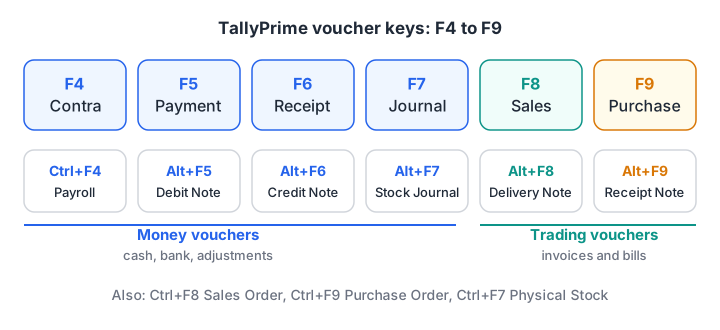
The six function keys that open TallyPrime's main accounting vouchers, with the Alt and Ctrl variants above them.
| Key | Voucher it opens | Typical use |
|---|---|---|
| F4 | Contra | Cash deposited into the bank, or withdrawn from it |
| F5 | Payment | Rent, salary or a supplier paid |
| F6 | Receipt | Money received from a customer |
| F7 | Journal | Adjustments such as depreciation |
| F8 | Sales | A sale invoice |
| F9 | Purchase | A purchase bill |
| Alt+F6 | Credit Note | Goods returned by a customer |
| Alt+F5 | Debit Note | Goods returned to a supplier |
| Alt+F7 | Stock Journal | Moving or converting stock |
| Ctrl+F7 | Physical Stock | Recording an actual stock count |
| Alt+F8 | Delivery Note | Goods sent before the invoice |
| Alt+F9 | Receipt Note | Goods received before the bill |
| Ctrl+F8 | Sales Order | An order from a customer |
| Ctrl+F9 | Purchase Order | An order placed on a supplier |
| Ctrl+F4 | Payroll | Salary voucher (when payroll is enabled) |
A simple memory trick: the money vouchers run in order from F4 to F7, and the trading vouchers are F8 for Sales and F9 for Purchase. Alt+ and Ctrl+ on the same keys open the related order, note or return.
Quick check
Which key opens a Receipt voucher in TallyPrime?
F6 opens Receipt. F5 is Payment and F8 is Sales.
Which keys help while entering a voucher?
Once a voucher is open, these keys stop you from leaving the screen.
| Key | What it does during entry |
|---|---|
| Alt+C | Create a new master (for example a ledger) on the fly |
| Ctrl+H | Change mode, such as Item Invoice or Accounting Invoice |
| Ctrl+I | Add more details to the voucher for this entry only |
| Ctrl+D | Remove the selected item or ledger line |
| Ctrl+T | Mark the voucher as post-dated |
| Ctrl+L | Mark the voucher as optional |
| Alt+R | Fetch the narration from the previous voucher for the same party |
| Ctrl+R | Fetch the narration from the previous voucher of the same type |
| Alt+A | Open the GST Tax Analysis of the voucher |
| Alt+S | Open Stock Query for the selected item |
| Ctrl+O | Open related reports while in the voucher |
| Alt+D | Delete the voucher |
| Alt+X | Cancel the voucher |
| PgUp / PgDn | Move to the previous or next voucher |
| F10 | Open the list of all vouchers or masters |
Alt+C saves the most frustration. Suppose a new customer, Shree Ganesh Traders, walks in. You don't need to save half a sales voucher, go to the ledger menu and come back. Press Alt+C in the party field, create the ledger, save it, and you land back in the voucher.
Alt+A matters once you set up GST. It shows how the voucher's tax was worked out, rate by rate, before you save. The GST setup guide for TallyPrime uses it to check a first invoice.
Quick check
You are halfway through a sales voucher and the customer ledger does not exist. What do you press?
Alt+C creates a master on the fly and returns you to the voucher, so you don't lose the entry.
Which shortcut keys work in TallyPrime reports?
Reports such as the Day Book, Trial Balance and Balance Sheet have their own keys. The TallyPrime reports tutorial explains what each report shows.
| Key | What it does in a report |
|---|---|
| Enter | Drill down into the selected line |
| Ctrl+Enter | Open the selected voucher for display, or alter a master |
| Alt+F1 | Switch between detailed and condensed view |
| Ctrl+B | View values in different ways |
| Ctrl+H | Change the view of the report |
| Ctrl+J | Show the exceptions related to the report |
| Ctrl+F | Filter the report by conditions (TallyPrime 3.0 and later) |
| Alt+I | Insert a voucher from inside the report |
| Alt+2 | Create a new entry by duplicating the selected voucher |
| Alt+D | Delete the selected entry |
| Ctrl+R | Remove (hide) a line from the report view |
| Ctrl+U | Restore the last hidden line |
| Alt+U | Restore all hidden lines |
| Shift+Enter | Expand or collapse details |
| Alt+P / Alt+E / Alt+M | Open the Print, Export or Share menu |
Alt+E is how most accountants move data into Excel. Export the Sales Register or a ledger, then build a summary with Excel pivot tables. Analysts who start from Tally data often find this is the bridge into Excel for data analysis.
Company and data keys
| Key | What it does |
|---|---|
| Alt+K | Company menu (create, alter, select companies) |
| Alt+Y | Data menu (backup, restore, repair) |
| Alt+O | Import menu |
| Alt+F3 | Open another company from the same or another data folder |
| Ctrl+F3 | Shut the currently loaded companies |
| Ctrl+Alt+R | Rewrite data |
| Ctrl+Alt+B | Show build information |
| Ctrl+K | Choose the display language |
How do you record a sale using only the keyboard?
Here is one full sale with zero mouse clicks. It assumes the company, a sales ledger, a stock item and the GST ledgers already exist. If they don't, follow the company and ledger setup guide first.
- From the Gateway of Tally, press Alt+G, type Create Voucher and press Enter.
- Press F8 to switch to Sales.
- Press F2 if the invoice date is not today, and type the date.
- In Party A/c name, type the first letters of the customer and press Enter. If the customer is new, press Alt+C to create them.
- Select the sales ledger, then the stock item, and type the quantity and rate.
- Select the tax ledgers, then press Alt+A to check the tax breakup.
- Type a narration, or press Alt+R to reuse the last one for this party.
- Press Ctrl+A to save.
- Press Alt+P if you want to print the invoice straight away.
Do this ten times with dummy data and the sequence becomes muscle memory.
What changed from Tally.ERP 9 to TallyPrime?
Many accountants learnt on Tally.ERP 9, and a few of its keys moved. If you see an old shortcut list online, check it against this table.
| Action | Tally.ERP 9 | TallyPrime |
|---|---|---|
| Credit Note | Ctrl+F8 | Alt+F6 |
| Debit Note | Ctrl+F9 | Alt+F5 |
| Sales Order | Not a shortcut | Ctrl+F8 |
| Purchase Order | Not a shortcut | Ctrl+F9 |
| Physical Stock | Alt+F10 | Ctrl+F7 |
| Help article for current screen | Alt+H | Ctrl+F1 |
| E-mail current voucher or report | Alt+M | Ctrl+M |
| Restore all hidden lines | Ctrl+U | Alt+U |
| Restore last hidden line | Alt+U | Ctrl+U |
Within TallyPrime itself, filtering a report also moved: Ctrl+F applies from TallyPrime 3.0 onwards, while TallyPrime 2.1 and earlier used Alt+F12.
Quick check
In TallyPrime, which shortcut opens a Credit Note?
Alt+F6 opens a Credit Note. Ctrl+F8 was the Tally.ERP 9 key and now opens a Sales Order, and Alt+F5 opens a Debit Note.
Common mistakes with TallyPrime shortcuts
- Using a Tally.ERP 9 list. Pressing Ctrl+F8 for a credit note now opens a Sales Order. Check the release you are on.
- Pressing Esc to save. Esc closes the screen, so an unsaved entry can be lost. The safe habit is Ctrl+A.
- Expecting a key to work everywhere. F5 opens a Payment voucher from a voucher screen, but in the GSTR-1 and GSTR-3B reports it switches views. Watch the right-hand button panel.
- Forgetting F11. Many "missing" fields, such as GST details or batch numbers, appear only after you switch on the feature in F11.
Memorising shortcuts is a lot like preparing for an aptitude test: short daily drills work better than one long session. You can keep your speed sharp with timed quizzes on Debugshala Test. Debugshala also teaches TallyPrime hands-on at its Old Palasia campus, if you prefer drilling these keys with a trainer.
Key takeaways
- TallyPrime is built for the keyboard, and the right-hand button panel shows the key for each action on the current screen.
- Learn F4 to F9 first: Contra, Payment, Receipt, Journal, Sales and Purchase.
- Alt+G (Go To) opens any report or master by name, Ctrl+A saves and Esc goes back.
- Alt+C, Alt+A and Ctrl+H save the most time during voucher entry.
- Credit Note, Debit Note and several other keys changed from Tally.ERP 9, so trust Tally's official list for your release.
FAQ
What is the shortcut key for a sales voucher in TallyPrime?
The shortcut for a sales voucher is F8. From the Gateway of Tally, press Alt+G, choose Create Voucher and press F8, or press F8 from any voucher screen. Ctrl+F8 opens a Sales Order instead, and Alt+F8 opens a Delivery Note, so check which document you need before pressing.
What does Alt+G do in TallyPrime?
Alt+G opens Go To, a search box that takes you straight to a report, or lets you create a master or voucher, by typing its name. For example, Alt+G then "trial" opens the Trial Balance. It replaces most menu clicking, and it works from almost any screen in the product.
What is the shortcut to save a voucher in TallyPrime?
Press Ctrl+A to accept and save the current voucher or master, from any field on the screen. Pressing Esc closes the screen instead and can discard what you typed, so make Ctrl+A your habit after every entry and every new ledger.
How do I see all shortcut keys inside TallyPrime?
Look at the right-hand button panel and the top menu on each screen, since every button shows its key. For the full list, press F1 for the Help menu, or Ctrl+F1 to open the help article for the screen you are on. Tally's official keyboard shortcuts page lists every key by area.
Where can I learn TallyPrime with shortcuts in Indore?
Debugshala teaches TallyPrime at its Old Palasia campus in Indore, with classes in English and Hindi and a free demo class before you pay anything. Shortcut speed comes from daily practice on real vouchers, so a classroom with guided exercises helps. You can ask Debugshala about its current TallyPrime batches.
Sources
- Keyboard Shortcuts in TallyPrime, TallyHelp, Tally Solutions (accessed November 2026)
- Release Notes for TallyPrime Release 7.2, TallyHelp, Tally Solutions (12 October 2026)
- How to Record Sales Under GST in TallyPrime, TallyHelp, Tally Solutions (accessed November 2026)
From the team behind this site
Go further with the Data Analytics Course at Debugshala
These tutorials are written by Debugshala, a training and placement institute at Old Palasia, Indore. The classroom course adds live mentoring, real projects and interview preparation.
- Offline classes at Old Palasia, Indore
- Free demo class before you pay
- Non-IT, fresher and year-gap friendly
- Placement assistance
700+ students placed · 200+ hiring partners · 4.9★ Google rating
