

Voucher Entry in TallyPrime: Sales, Purchase, Payment, Receipt
Learn voucher entry in TallyPrime with one month of worked entries: sales, purchase, payment, receipt, contra and journal vouchers, with keys and examples.
Picture a busy wholesale counter. The owner tears slips from different pads: green for sales, yellow for purchases, pink for cash paid, blue for money received.
At night the accountant sorts the slips by colour and copies each one into the right accounts. The colour tells them where to look; the slip tells them how much and with whom.
TallyPrime keeps the pads but removes the copying. Each pad is a voucher type, each slip is a voucher, and when you save the slip, TallyPrime posts it to the accounts for you.
A voucher in TallyPrime is a document that records one financial transaction, such as a sale, purchase, payment or receipt, and posts it to the ledgers involved.
You will record one month of transactions for Narmada Traders, using the ledgers you created in company, groups and ledgers.
What are the voucher types in TallyPrime?
TallyPrime comes with predefined voucher types. The six you use daily have their own function keys on the Voucher screen; the rest are under F10 (Other Vouchers).
| Voucher | Key | Use it when | Example |
|---|---|---|---|
| Contra | F4 | Money moves between your own cash and bank accounts | Deposit ₹10,000 cash in the bank |
| Payment | F5 | Money goes out by cash or bank | Pay ₹12,000 shop rent |
| Receipt | F6 | Money comes in by cash or bank | Customer pays ₹18,500 |
| Journal | F7 | No cash or bank is involved, and no other type fits | Transporter's freight bill on credit |
| Sales | F8 | You sell goods or services | Bill for 8 bags of toor dal |
| Purchase | F9 | You buy goods or services | Bill from the dal mill |
| Credit Note | Alt+F6 | A customer returns goods or you reduce their bill | 1 damaged bag returned |
| Debit Note | Alt+F5 | You return goods to a supplier | Send back a short-weight bag |
Order vouchers (Sales Order, Ctrl+F8, and Purchase Order, Ctrl+F9) and inventory vouchers such as the Stock Journal (Alt+F7) are also under F10. Orders don't affect your accounts until you bill them.
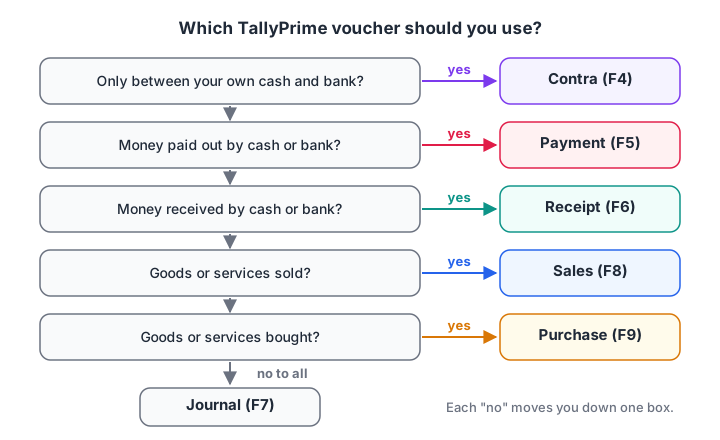
Ask the questions in order. The first "yes" tells you which voucher to use.
How does a voucher post to ledgers?
Every voucher has two sides, debit and credit, and both sides are always equal. This is called double entry, and it is why your books balance without you adding anything up.
A short rule of thumb works for most entries:
- Debit what comes in or what you spend: cash received, goods bought, an expense, a customer who now owes you.
- Credit what goes out or where it comes from: cash paid, goods sold (income), a supplier you now owe.
When you save a voucher, TallyPrime adds it to each ledger it touches, the Day Book, and every report that uses those ledgers.
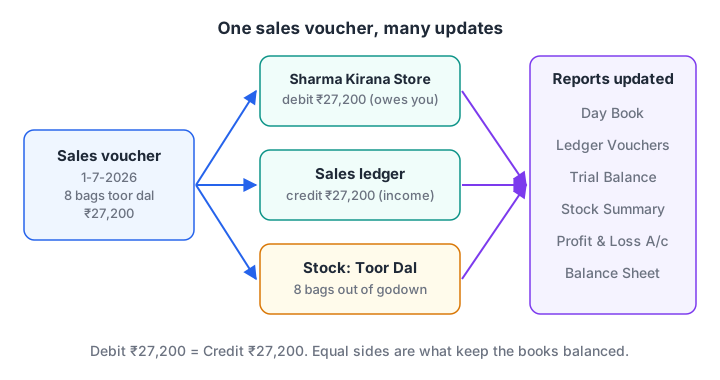
One voucher, entered once, updates both ledgers, the stock record and every report.
The common voucher screen
Every voucher screen has the same parts:
- Voucher type and number at the top left. TallyPrime numbers vouchers automatically.
- Date at the top right. Press F2 to change it before you start.
- Ledger lines. Depending on the type you see Account and Particulars (single entry), or Dr/Cr lines (double entry). Press Ctrl+H (Change Mode) to switch.
- Narration at the bottom: a short note such as "Rent for July 2026, cheque 004512".
- Press Ctrl+A to save.
To keep the numbers simple, these examples leave GST out. Real GST invoices add tax ledgers, which you will set up in GST in TallyPrime.
Quick check
In a credit sale to a retailer, which ledger is debited?
The retailer now owes you, so their ledger (under Sundry Debtors) is debited, and the Sales ledger is credited.
How to record a purchase voucher (F9)
On 1 July, Narmada Traders buys 20 bags of toor dal at ₹3,000 a bag from Malwa Dal Mill on credit.
- Press Alt+G > Create Voucher > F9 (Purchase), or Gateway of Tally > Vouchers > F9.
- Press F2 and set the date to
1-7-2026. - Enter the supplier invoice number from the mill's bill.
- Party A/c name:
Malwa Dal Mill. - Purchase ledger:
Purchase. - Name of Item:
Toor Dal, Quantity20 Bag, Rate3,000. The amount shows ₹60,000. - Bill-wise details: choose New Ref so this bill can be tracked until it is paid.
- Narration: "20 bags toor dal, mill bill 7781". Press Ctrl+A.
Malwa Dal Mill's ledger is credited ₹60,000 (you owe them), Purchase is debited ₹60,000, and stock of toor dal goes up by 20 bags. Stock items are explained in inventory management.
How to record a sales voucher (F8)
TallyPrime has two sales screens. Item Invoice is for goods with quantity and rate. Accounting Invoice is for services, where you only enter a ledger and an amount. Press Ctrl+H on the sales screen to switch.
On 1 July, Narmada Traders sells 8 bags of toor dal at ₹3,400 to Sharma Kirana Store on credit.
- Press Alt+G > Create Voucher > F8 (Sales). Check that the mode is Item Invoice.
- Date
1-7-2026. - Party A/c name:
Sharma Kirana Store. For a cash sale you would selectCashhere instead. - Sales ledger:
Sales. - Name of Item:
Toor Dal, Quantity8 Bag, Rate3,400. Amount ₹27,200. - Bill-wise details: New Ref, so the bill appears in Sharma's outstanding list.
- Press Ctrl+A. You can print the invoice with Alt+P.
On 31 July there is also a cash sale of 2 bags of chana dal at ₹2,900 (₹5,800), entered the same way with Cash as the party.
How to record payment and receipt vouchers (F5, F6)
Payment. On 2 July you pay ₹12,000 shop rent by cheque.
- Alt+G > Create Voucher > F5 (Payment), date
2-7-2026. - In single entry mode, Account:
Bank of Baroda A/c. - Particulars:
Shop Rent, amount12,000. - In the Bank Allocations screen, set Transaction Type to
Chequeand enter the instrument number and date. - Narration and Ctrl+A.
Receipt. Also on 2 July, Sharma Kirana Store pays its old balance of ₹18,500 into your bank.
- F6 (Receipt), date
2-7-2026. - Account:
Bank of Baroda A/c. Particulars:Sharma Kirana Store, amount18,500. - In Bill-wise Details, set Type of Ref to
Agst Refand pick the opening bill. This clears that bill from Sharma's outstanding list. - Ctrl+A.
How to record contra and journal vouchers (F4, F7)
Contra. On 31 July you deposit ₹10,000 of shop cash into the bank. Both are your own accounts, so it's a contra entry: F4, debit Bank of Baroda A/c, credit Cash, ₹10,000. A cash withdrawal from an ATM is the reverse.
Journal. On 31 July Indore Roadways sends a bill of ₹2,000 for bringing the dal from the mill, payable later. No cash or bank moves, so it's a journal entry: F7, debit Freight Inward, credit Indore Roadways (a new ledger under Sundry Creditors, created on the spot with Alt+C).
July at a glance
| Date | Voucher | Debit | Credit | ₹ |
|---|---|---|---|---|
| 1-7-2026 | Purchase | Purchase | Malwa Dal Mill | 60,000 |
| 1-7-2026 | Sales | Sharma Kirana Store | Sales | 27,200 |
| 2-7-2026 | Payment | Shop Rent | Bank of Baroda A/c | 12,000 |
| 2-7-2026 | Receipt | Bank of Baroda A/c | Sharma Kirana Store | 18,500 |
| 31-7-2026 | Sales | Cash | Sales | 5,800 |
| 31-7-2026 | Contra | Bank of Baroda A/c | Cash | 10,000 |
| 31-7-2026 | Journal | Freight Inward | Indore Roadways | 2,000 |
You will read these seven vouchers back as reports in TallyPrime reports.
Quick check
You withdraw ₹5,000 cash from the business bank account for the shop counter. Which voucher do you use?
Cash and bank are both your own accounts, so money moving between them is a Contra entry: debit Cash, credit Bank.
How to change, cancel or delete a voucher
Open the voucher from the Day Book and edit it, then press Ctrl+A. From the voucher screen, Alt+D deletes it and Alt+X cancels it. A cancelled voucher keeps its number but loses its details and amounts, which keeps your invoice numbering continuous. Alt+2 duplicates a voucher, handy for repeated monthly entries such as rent.
Common voucher entry mistakes
Using Payment for a bank deposit. Cash to bank is a Contra entry. A Payment would show a fake expense.
Wrong date. Most errors in practice are vouchers on the wrong day. Press F2 first.
Skipping bill-wise details. Without New Ref and Agst Ref, you can't tell which bills a customer still owes.
No narration. Six months later, "₹12,000 to bank" means nothing. Write who, what and the reference number.
Speed comes with repetition. Once the logic is clear, the shortcut keys guide helps you enter vouchers without the mouse. Accountants who later want to analyse this data in Excel and SQL often take the step from bookkeeping into data analytics.
Key takeaways
- A voucher records one transaction and posts it to every ledger and report it affects.
- F4 Contra, F5 Payment, F6 Receipt, F7 Journal, F8 Sales and F9 Purchase cover most daily work; other types are under F10.
- Every voucher follows double entry: equal debit and credit.
- Use Item Invoice for goods and Accounting Invoice for services, switching with Ctrl+H.
- Set the date with F2, record bill-wise references, write a narration, and save with Ctrl+A.
FAQ
What is the shortcut key for a sales voucher in TallyPrime?
F8 opens the Sales voucher once you are on the Voucher screen (Alt+G > Create Voucher, or Gateway of Tally > Vouchers). F9 opens Purchase, F5 Payment, F6 Receipt, F4 Contra and F7 Journal. Other voucher types, such as Credit Note and Stock Journal, are listed under F10.
What is the difference between a contra and a journal voucher?
A contra voucher moves money between your own cash and bank accounts, such as a deposit or withdrawal. A journal voucher records a transaction with no cash or bank at all, such as a credit bill for freight or a depreciation adjustment. If cash or bank moves to an outside party, use Payment or Receipt instead.
What is single entry and double entry mode in TallyPrime?
They are two layouts of the same voucher. Single entry mode shows one Account (such as Bank) and several Particulars lines, which is faster for simple payments. Double entry mode shows separate debit and credit lines, so you can have several of each. Switch between them with Ctrl+H on the voucher screen.
Can I practise voucher entry without a TallyPrime licence?
Yes. Educational mode lets you record every voucher type, but only on the 1st, 2nd and 31st of a month. Enter a full month of practice transactions on those dates, then check them in the Day Book. For logical reasoning practice, try aptitude quizzes on Debugshala Test.
Where can I practise TallyPrime voucher entry with a trainer in Indore?
Debugshala, an IT training and placement institute in Indore, teaches TallyPrime at its Old Palasia campus. Classes run offline in English and Hindi, non-IT graduates are accepted, and a free demo class comes before you pay anything. To check timings, enquire about TallyPrime training at Debugshala.
From the team behind this site
Go further with the Data Analytics Course at Debugshala
These tutorials are written by Debugshala, a training and placement institute at Old Palasia, Indore. The classroom course adds live mentoring, real projects and interview preparation.
- Offline classes at Old Palasia, Indore
- Free demo class before you pay
- Non-IT, fresher and year-gap friendly
- Placement assistance
700+ students placed · 200+ hiring partners · 4.9★ Google rating
