

GST in TallyPrime: Setup, Tax Ledgers and Your First GST Invoice
Set up GST in TallyPrime 7.2 step by step: enable GST with F11, create CGST, SGST and IGST ledgers, set HSN and rates, and record a GST sales invoice.
Think of TallyPrime as a new cashier at a shop in Rajwada. On day one, the cashier can write bills but doesn't know your GST number, your state or each product's rate, so they can't add tax correctly.
Setting up GST is that first-day briefing: who you are (company GST details), where tax goes (tax ledgers), who your customers are (party GSTIN and state) and each product's tax (HSN and rate). After that, every invoice calculates itself.
GST setup in TallyPrime is the one-time configuration of company GST details, tax ledgers, party details and item tax rates, so that sales and purchase vouchers calculate CGST, SGST or IGST automatically and flow into GST returns.
This guide uses TallyPrime 7.2 (released 12 October 2026), with menu names from Tally's official help. New to Tally? Start with company, groups and ledgers; for the tax rules, read GST basics in India.
What do you need before setting up GST in TallyPrime?
Keep ready your GSTIN and state, your registration type (Regular, Composition or Regular – SEZ), your GSTR-1 periodicity (monthly or quarterly, as on the portal), the HSN/SAC and rate of each product, and each regular party's GSTIN and state.
For practice, use a test company. We will extend Narmada Traders, the made-up Indore wholesaler from the Tally Basics articles, which has added mixer grinders to its range. Assume they are taxed at 18%.
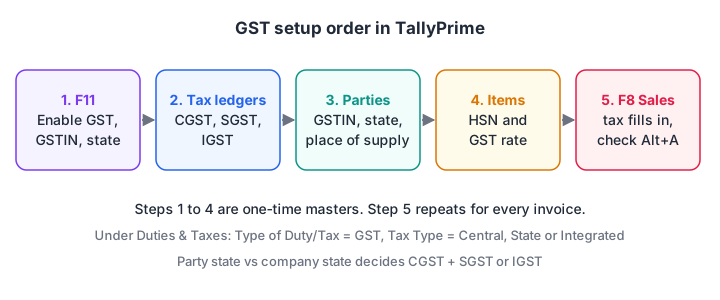
The five-step GST setup order in TallyPrime. Each step feeds the next, and the sales voucher uses all of them.
Step 1: How do you enable GST for a company in TallyPrime?
- Open the company.
- Press F11 (Company Features).
- Set Enable Goods and Services Tax (GST) to Yes.
- In the GST Registration Details screen, fill in:
- State: filled in from the company address; change it if needed (Madhya Pradesh).
- GSTIN/UIN: your 15-character number.
- Registration Type: Regular.
- Assessee of Other Territory: leave as No unless your business is in an "other territory".
- Periodicity of GSTR-1: Monthly or Quarterly, the same as on the portal.
- Press Ctrl+A to save.
Each registration gets a Registration Name such as "Madhya Pradesh Registration" (TallyPrime 3.0 and later). With GSTINs in several states, set Create another GST Registration for the Company to Yes. From TallyPrime 5.0 you can also store your portal username and filing mode (EVC or DSC) for connected filing; skip that while learning.
Step 2: How do you create CGST, SGST and IGST ledgers?
A ledger is an account that collects all entries of one kind. GST you collect is owed to the government (a liability), so tax ledgers go under Duties & Taxes.
- Go to Gateway of Tally > Create > Ledger (or press Alt+G and type Create Master).
- Name: CGST. Under: Duties & Taxes.
- Type of Duty/Tax: GST. Tax Type: Central Tax.
- Press Ctrl+A to save.
- Repeat for SGST (Tax Type: State Tax) and IGST (Tax Type: Integrated Tax).
| Ledger | Under | Type of Duty/Tax | Tax Type | Used for |
|---|---|---|---|---|
| CGST | Duties & Taxes | GST | Central Tax | Local sales and purchases |
| SGST | Duties & Taxes | GST | State Tax | Local sales and purchases |
| IGST | Duties & Taxes | GST | Integrated Tax | Inter-state sales and purchases |
You don't need a ledger per rate: one CGST ledger handles 2.5% and 9% alike, because the rate comes from the item or sales ledger.
Quick check
Under which group do you create the CGST ledger in TallyPrime?
GST ledgers are tax liabilities, so they go under Duties & Taxes with Type of Duty/Tax set to GST.
Step 3: How do you set up customer and supplier ledgers for GST?
Party ledgers decide the place of supply, so they matter as much as rates.
- Gateway of Tally > Create > Ledger.
- Name: Bhopal Home Appliances. Under: Sundry Debtors.
- In the address details, set State to Madhya Pradesh. In the GST registration details, set Registration Type to Regular and enter the customer's 15-character GSTIN/UIN. Check that Place of Supply shows Madhya Pradesh.
- Save with Ctrl+A.
- Create Sabarmati Traders, Ahmedabad the same way, with State set to Gujarat.
Suppliers go under Sundry Creditors with the same details. A wrong state here is the usual reason TallyPrime charges IGST when you expected CGST and SGST. On the ledger screen, Alt+L fetches a party's registration details from the portal using the GSTIN (valid licence and TSS needed).
Quick check
A sale from an Indore company to a customer whose ledger state is Gujarat should use which tax ledger?
The place of supply (Gujarat) differs from the company's state (Madhya Pradesh), so the sale is inter-state and attracts IGST.
Step 4: Where do you set the GST rate and HSN in TallyPrime?
You can store HSN/SAC and rate at company level (one rate for everything), sales ledger level (for example Sales @ 18%) or stock item level (each product its own rate, the usual choice for traders).
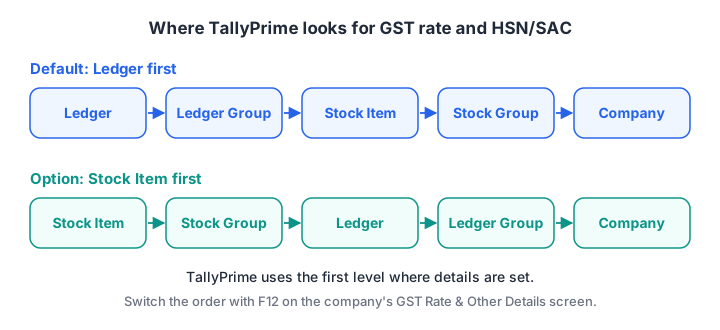
By default, TallyPrime looks for the GST rate and HSN/SAC from the ledger first and uses the first level where they are set. You can switch to Stock Item first.
For the stock item route:
- Gateway of Tally > Create > Stock Item. Name: Mixer Grinder 750W. Set the unit (for example Nos).
- Set GST applicability to Applicable.
- In the HSN and GST Rate details, enter the HSN code for the product.
- In the same details, enter the GST rate, here 18%. TallyPrime fills IGST at 18% and splits it into CGST 9% and SGST 9% automatically.
- Save with Ctrl+A.
Also create a Sales ledger under Sales Accounts with GST applicability set to Applicable. Units and godowns are covered in the TallyPrime inventory guide. To review rates in bulk, open the GST Rate Setup report with Alt+G, handy whenever rates change, as they did on 22 September 2025.
Step 5: How do you make a GST sales invoice in TallyPrime?
Now the payoff. Record Narmada Traders selling 25 mixer grinders at ₹2,000 each to Bhopal Home Appliances.
- Press Alt+G > Create Voucher, then F8 (Sales).
- Press Ctrl+H and choose Item Invoice mode.
- Check the voucher number and press F2 to set the date if needed.
- In Party A/c name, select Bhopal Home Appliances. In the party details, confirm the GSTIN and that Place of Supply is Madhya Pradesh.
- Select the sales ledger Sales.
- Under Name of Item, select Mixer Grinder 750W, quantity 25, rate ₹2,000. Amount: ₹50,000.
- Below the items, select the CGST and SGST ledgers. TallyPrime fills ₹4,500 in each.
- Press Alt+A to open the Tax Analysis and confirm the rate and HSN. Press Esc to return.
- Press Ctrl+A to save.
What you'll see on screen: the invoice body shows the item with its HSN in brackets, a subtotal of ₹50,000, CGST ₹4,500, SGST ₹4,500 and a total of ₹59,000.
| Ledger | Debit (₹) | Credit (₹) |
|---|---|---|
| Bhopal Home Appliances (Sundry Debtors) | 59,000 | |
| Sales (Sales Accounts) | 50,000 | |
| CGST (Duties & Taxes) | 4,500 | |
| SGST (Duties & Taxes) | 4,500 |
In plain words: the customer owes you ₹59,000 (debit), sales rise by ₹50,000 and you owe the government ₹9,000 of GST (credits).
The inter-state version
Repeat the voucher with Sabarmati Traders, Ahmedabad. Because the party's state is Gujarat, the Place of Supply differs from your company's state. Select the IGST ledger instead, and TallyPrime fills ₹9,000. The total is still ₹59,000.
A purchase works the same way through F9 (Purchase), and the GST you pay lands as input tax credit in the same tax ledgers. The voucher entry tutorial covers the purchase side.
Quick check
Which key shows the GST tax breakup while you are in a sales voucher?
Alt+A opens the GST Tax Analysis during voucher entry, so you can check the rate and tax head before saving.
Does TallyPrime handle e-invoices and e-way bills?
Yes, after a one-time setup for each. As of November 2026, businesses whose aggregate turnover exceeded ₹5 crore in any financial year from 2017-18 must report B2B invoices to an Invoice Registration Portal (IRP) to get an IRN and QR code.
At ₹10 crore or more, each e-invoice must be reported within 30 days of its date (since 1 April 2025).
An e-way bill is generally needed when goods worth more than ₹50,000 move in a motor vehicle. Release 7.2 adds a login session of up to 30 days for these services, alongside the earlier 6-hour session.
Common mistakes when setting up GST in TallyPrime
- Wrong state on the party ledger. TallyPrime picks the wrong tax type; fix the ledger and re-check vouchers.
- Periodicity mismatch. F11 must match the portal (monthly or quarterly), or uploads fail.
- Old rates left on items. Many 12% and 28% items moved on 22 September 2025; review them in GST Rate Setup.
- Skipping Alt+A. If an item has no HSN or rate, the tax lines come out blank or wrong. A two-second look at the Tax Analysis before Ctrl+A catches it.
Once your vouchers are clean, exporting registers to Excel with Alt+E and summarising them with Excel pivot tables is a quick way to cross-check monthly tax.
Key takeaways
- Press F11 and enable GST, then enter state, GSTIN, registration type and GSTR-1 periodicity.
- Create CGST, SGST and IGST ledgers under Duties & Taxes with the right Tax Type; one ledger each covers all rates.
- Party ledgers need state and GSTIN, because the place of supply decides CGST + SGST versus IGST.
- Store HSN and rate on stock items or sales ledgers, and review them with the GST Rate Setup report.
- In a Sales voucher (F8), check Alt+A before saving with Ctrl+A.
FAQ
How do I enable GST in TallyPrime?
Open the company, press F11 for Company Features and set Enable Goods and Services Tax (GST) to Yes. Then fill in the GST Registration Details: state, GSTIN, registration type and GSTR-1 periodicity. Save with Ctrl+A. You can add more registrations if your business has GSTINs in other states.
Why is TallyPrime showing IGST instead of CGST and SGST?
TallyPrime compares your company's state with the place of supply on the voucher, which comes from the party ledger. If they differ, it treats the sale as inter-state and uses IGST. Check the state and GSTIN on the party ledger and the Place of Supply in the voucher's party details.
Is e-invoicing mandatory for my business?
E-invoicing is mandatory if your aggregate turnover exceeded ₹5 crore in any financial year from 2017-18 onwards, as of November 2026. It covers B2B invoices and certain other documents. Businesses with turnover of ₹10 crore or more must report each e-invoice to the IRP within 30 days of its date.
Does Debugshala teach TallyPrime in Indore?
Yes. Debugshala teaches TallyPrime at its Old Palasia campus in Indore, and setting up GST and recording GST invoices is part of learning Tally. Classes are in English and Hindi, with a free demo class first. Contact Debugshala about its TallyPrime training, and practise quizzes on Debugshala Test.
Sources
- How to Set Up GST in Your Company in TallyPrime, TallyHelp, Tally Solutions (updated 1 September 2026)
- How to Set Up Tax Ledgers in TallyPrime, TallyHelp, Tally Solutions (accessed November 2026)
- How to Set Up GST Rate and HSN/SAC Details in TallyPrime, TallyHelp, Tally Solutions (accessed November 2026)
- How to Record Sales Under GST in TallyPrime, TallyHelp, Tally Solutions (accessed November 2026)
- Release Notes for TallyPrime Release 7.2, TallyHelp, Tally Solutions (12 October 2026)
- E-invoicing Mandate Under GST, GST e-invoice portal (accessed November 2026)
- Revised Time Limit for E-Invoice Reporting for Businesses with AATO of ₹10 Crores and Above, GST e-invoice portal (2024)
- E-Way Bill System FAQ, e-Way Bill portal, GSTN (accessed November 2026)
From the team behind this site
Go further with the Data Analytics Course at Debugshala
These tutorials are written by Debugshala, a training and placement institute at Old Palasia, Indore. The classroom course adds live mentoring, real projects and interview preparation.
- Offline classes at Old Palasia, Indore
- Free demo class before you pay
- Non-IT, fresher and year-gap friendly
- Placement assistance
700+ students placed · 200+ hiring partners · 4.9★ Google rating
