

Create a Company, Groups and Ledgers in TallyPrime
Step-by-step: create a company in TallyPrime, set F11 features, understand the 28 predefined groups and create ledgers with opening balances for a real trader.
Think of a new office almirah. Before filing anything, you label the shelves "Customers", "Suppliers", "Bank", "Expenses", then put one folder per party on the right shelf.
Push a supplier's folder onto the customers' shelf and nothing breaks today. But at year end, "how much do customers owe us" comes out wrong.
Setting up TallyPrime works the same way. The almirah is your company, the shelves are groups, and the folders are ledgers. Every voucher you record later goes into one of those folders.
In TallyPrime, a company is the separate set of books for one business, a group is a category of accounts, and a ledger is an individual account in which transactions are recorded.
In this article you will set up Narmada Traders, the made-up Indore wholesaler from What is TallyPrime, with its groups and first ledgers.
How to create a company in TallyPrime
A company holds one business's books; a CA firm may keep one company per client.
Follow these steps (TallyPrime 7.2):
- Open TallyPrime. Press Alt+K (Company) > Create. If another company is already open, you can also choose Create Company on the Select Company screen.
- Company Name: type the registered name,
Narmada Traders. - Company Data Path: TallyPrime fills in the default folder. Press Spacebar only if you want to store the data elsewhere.
- Mailing Name: filled from the company name. Change it if your invoices should print a different name.
- Address, State and Country: enter the shop address in Siyaganj, Indore, State
Madhya Pradesh, CountryIndia. The state matters later for GST. - Mobile, E-mail, Website: these print on invoices and other documents.
- Financial year beginning from:
1-4-2026for the year 2026-27. - Books beginning from: the day your transactions actually start. If Narmada Traders starts using TallyPrime from 1 July 2026, enter
1-7-2026. - Base Currency: India's rupee is filled in automatically.
- Press Ctrl+A to create the company.
TallyPrime then shows the Company Features screen. You can open it again any time with F11.
Optional security settings
On the Company Creation screen, F12 (Configure) reveals extra options:
- User Access Control: set an administrator username and password so only authorised people open the books.
- TallyVault password: encrypts the company data, so the files can't be read without the password. If you forget it, the data can't be recovered, so store it safely.
- Edit Log: keeps an audit trail of every change to masters and vouchers.
Which company features should you turn on with F11?
The F11 Company Features screen has sections for Accounting, Inventory, Taxation, Online Access, Payroll and Others. Turn on only what the business needs, because each feature adds fields to your screens.
For Narmada Traders, a trading business with credit customers, set these:
| F11 option | Section | Why Narmada Traders needs it |
|---|---|---|
| Maintain Accounts | Accounting | The basic books |
| Enable Bill-wise entry | Accounting | Track which bill each customer still owes |
| Maintain Inventory | Inventory | Track bags of dal and boxes of masala |
| Integrate Accounts with Inventory | Inventory | Stock value flows into the Balance Sheet |
| Enable Goods and Services Tax (GST) | Taxation | The business is GST-registered |
GST setup has its own steps (GSTIN, registration type, rates), so leave that for GST in TallyPrime.
What are groups in TallyPrime?
A group collects ledgers of the same nature. When you open the Balance Sheet, you see group totals first, and you drill down into them for individual ledgers.
TallyPrime ships with 28 predefined groups: 15 primary groups and 13 sub-groups. Nine primary groups appear in the Balance Sheet (they are capital in nature) and six appear in the Profit & Loss A/c (they are revenue in nature).
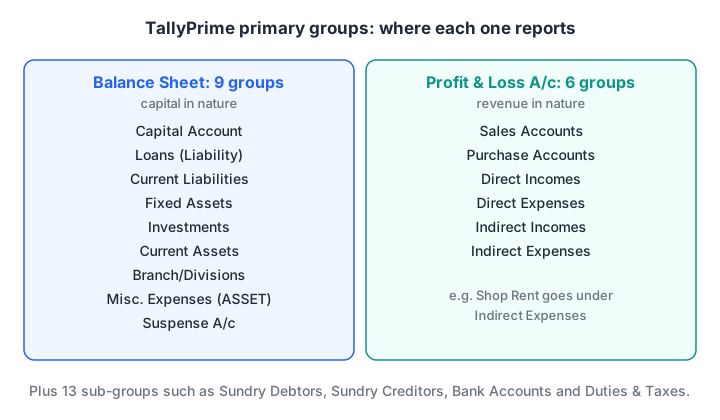
The group you pick for a ledger decides which financial statement it lands in.
| Shows in | Primary groups |
|---|---|
| Balance Sheet (9) | Capital Account, Loans (Liability), Current Liabilities, Fixed Assets, Investments, Current Assets, Branch/Divisions, Misc. Expenses (ASSET), Suspense A/c |
| Profit & Loss A/c (6) | Sales Accounts, Purchase Accounts, Direct Incomes, Direct Expenses, Indirect Incomes, Indirect Expenses |
The 13 sub-groups sit under these primaries. The ones you will use every day are Sundry Debtors (customers who owe you), Sundry Creditors (suppliers you owe), Bank Accounts, Cash-in-Hand, Duties & Taxes and Stock-in-Hand. The others are Bank OD A/c, Deposits (Asset), Loans & Advances (Asset), Provisions, Reserves & Surplus, Secured Loans and Unsecured Loans.
How to create your own group
You can add your own groups. Narmada Traders wants its Indore retailers shown separately, so it creates "Indore Retailers" under Sundry Debtors.
- Press Alt+G (Go To) > Create Master > Group, or go to Gateway of Tally > Create > Group.
- Name:
Indore Retailers. - Under: select
Sundry Debtors. - Leave the other options at their defaults and press Ctrl+A.
If you create a group directly under Primary, TallyPrime asks for the Nature of Group (Assets, Liabilities, Income or Expenses). That choice decides where it appears in the reports.
Quick check
Under which group should the ledger for a customer who buys on credit be created?
A credit customer owes you money, so the ledger is a current asset under Sundry Debtors. Sales Accounts is for the income ledger itself.
Quick check
How many predefined groups does TallyPrime provide?
TallyPrime has 28 predefined groups: 15 primary groups and 13 sub-groups.
How to create a ledger in TallyPrime
A ledger is where amounts actually post. A new company already has two predefined ledgers: Cash and Profit & Loss A/c. You create the rest.
- Press Alt+G (Go To) > Create Master > Ledger, or go to Gateway of Tally > Create > Ledger.
- Name: for example
Sharma Kirana Store. - Under: select the group, here
Indore Retailers(which sits under Sundry Debtors). Press Alt+C if you need a new group on the spot. - Fill in the fields that appear for that group. For a party ledger you get mailing details (address, state, pincode) and, with bill-wise entry on, credit period and credit limit.
- Opening Balance: if Sharma already owed you ₹18,500 when your books began, enter it here as a debit balance.
- Press Ctrl+A to save.
The fields shown change with the group: a bank ledger asks for bank details, an expense ledger for almost nothing.
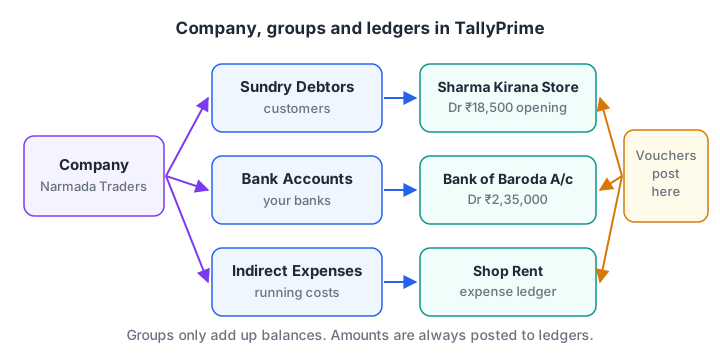
A company holds groups, groups hold ledgers, and every voucher you enter later posts to ledgers.
Ledgers Narmada Traders needs
Here is a starter chart of accounts. The opening balances are made-up figures as on 1 July 2026.
| Ledger | Under | Opening balance |
|---|---|---|
| Ramesh Patel Capital | Capital Account | ₹4,00,000 Cr |
| Bank of Baroda A/c | Bank Accounts | ₹2,35,000 Dr |
| Cash | Cash-in-Hand (predefined) | ₹15,000 Dr |
| Sharma Kirana Store | Indore Retailers (Sundry Debtors) | ₹18,500 Dr |
| Malwa Dal Mill | Sundry Creditors | ₹42,000 Cr |
| Sales | Sales Accounts | none |
| Purchase | Purchase Accounts | none |
| Shop Rent | Indirect Expenses | none |
| Freight Inward | Direct Expenses | none |
Here the debits total ₹2,68,500 and the credits ₹4,42,000. The gap of ₹1,73,500 is the opening stock, which you enter on stock items in inventory management. Once stock is in, debits and credits balance. If they don't, the Trial Balance shows a Difference in opening balances line, which you fix by correcting each ledger's opening figure.
Create many ledgers at once
Typing 200 customers one by one is slow. Press Alt+G (Go To) > Chart of Accounts > Ledgers, then press Alt+H (Multi-Masters) and choose Multi Create to enter many ledgers in one grid. If the list is already in a spreadsheet, tidy it first; the Excel data cleaning guide shows how to remove duplicate names and stray spaces.
Alter or delete a ledger
To change a ledger, press Alt+G > Alter Master > Ledger, pick it from the list, edit and press Ctrl+A. To delete, open it the same way and press Alt+D.
TallyPrime won't delete a predefined ledger, a ledger that already has transactions, or one used elsewhere (for example in a voucher type).
Common mistakes when setting up ledgers
Customers under Sales Accounts. A customer is a person who owes you money, so the ledger goes under Sundry Debtors. Sales is a separate income ledger.
Expenses under the wrong side. Freight on purchases is a Direct Expense and affects gross profit. Shop rent is an Indirect Expense. Mixing them distorts gross profit.
Duplicate parties. "Sharma Kirana" and "Sharma Kirana Store" become two ledgers, each with part of the balance.
Skipping opening balances. Your first Balance Sheet then won't match last year's closing.
For more practice with this kind of logic, try the reasoning quizzes on Debugshala Test.
Key takeaways
- Create a company with Alt+K > Create, set the financial year and books start dates, and save with Ctrl+A.
- Use F11 to turn on only the features the business needs, such as bill-wise entry and inventory.
- TallyPrime's 28 predefined groups decide where each ledger appears: 9 primary groups feed the Balance Sheet, 6 feed the Profit & Loss A/c.
- Create ledgers with Alt+G > Create Master > Ledger, and enter opening balances so the books carry forward correctly.
- Next, record vouchers that post to these ledgers.
FAQ
What is the difference between a group and a ledger in TallyPrime?
A group is a category, and a ledger is an individual account inside it. Sundry Debtors is a group; Sharma Kirana Store is a ledger under it. You record transactions only in ledgers. Groups add the ledger balances together so reports can show totals such as "all customers".
Can I change the financial year after creating a company?
Yes. Press Alt+K (Company) > Alter, select the company, and change the Financial year beginning from or Books beginning from date. Be careful once vouchers exist: check that every recorded voucher still falls on or after the new books beginning date before you save.
Which group should a GST ledger go under?
GST ledgers such as CGST, SGST and IGST go under the Duties & Taxes group. That group sits under Current Liabilities, because the tax you collect is owed to the government. The exact GST ledger settings are covered in the series article on GST in TallyPrime.
Why can't I delete a ledger in TallyPrime?
TallyPrime blocks deletion when a ledger is predefined (Cash, Profit & Loss A/c), has vouchers recorded in it, or is used in another master such as a voucher type. Delete or move those vouchers first. If the ledger is simply unused, open it in Alter mode and press Alt+D.
Is learning Tally enough for an accounts job in Indore?
Tally plus GST covers the core of most junior accounts roles, but employers also expect Excel. Debugshala teaches TallyPrime in classroom sessions at its Old Palasia campus in Indore, and accepts non-IT graduates; contact Debugshala for TallyPrime training details. Its classroom data analytics course at Old Palasia covers the analysis side.
From the team behind this site
Go further with the Data Analytics Course at Debugshala
These tutorials are written by Debugshala, a training and placement institute at Old Palasia, Indore. The classroom course adds live mentoring, real projects and interview preparation.
- Offline classes at Old Palasia, Indore
- Free demo class before you pay
- Non-IT, fresher and year-gap friendly
- Placement assistance
700+ students placed · 200+ hiring partners · 4.9★ Google rating
