

Install R and RStudio on Windows, macOS and Linux (2026)
Install R and RStudio step by step on Windows, macOS and Ubuntu, check your R version, add packages, and run your first R script without common setup errors.
Picture the billing counter at a Malwa Mart store. Inside the machine is the part that adds up prices and prints the bill. On top sits the screen, the keypad and the receipt tray that the cashier actually touches. Without the inside, the screen is useless. Without the screen, the inside works, but it is painful to use.
R and RStudio have exactly this relationship. R is the engine that runs your code and does the maths. RStudio is the screen and keypad: a comfortable window with an editor, a console, a data viewer and a plot area. You install the engine first, then the dashboard on top of it.
Installing R means putting the R interpreter on your computer from CRAN; RStudio Desktop is a free IDE, made by Posit, that runs on top of that interpreter.
If you haven't read it yet, What is R programming? explains what R is used for. This guide gets it running so you can follow every lesson in the series. It targets R 4.4 or newer and the current RStudio Desktop.
R vs RStudio: what is the difference?
Beginners often download only RStudio, open it and see an error that R cannot be found. The table clears up which is which.
| R | RStudio Desktop | |
|---|---|---|
| What it is | Programming language and interpreter | Integrated development environment (IDE) |
| Who makes it | R Core Team, via CRAN | Posit |
| Can run code alone? | Yes, in a plain console | No, it needs R installed |
| Download from | cran.r-project.org | posit.co |
| Cost | Free, open source | Free open-source edition |
You can use R without RStudio, for example from a terminal or in VS Code. Most learners and most analytics teams start with RStudio because it shows everything in one window.
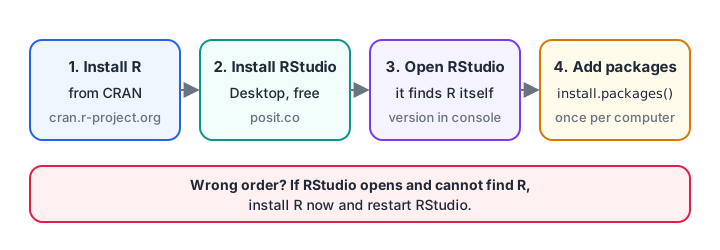
The correct order. RStudio looks for an installed R when it starts, so R must come first.
How to install R on Windows
- Open cran.r-project.org and click Download R for Windows.
- Click base, then the large download link for the latest release (R 4.4 or newer).
- Run the downloaded
.exefile. Accept the defaults unless you have a reason to change them. - When it finishes, you will find R in the Start menu. You don't need to open it; RStudio will use it.
You may see a link to Rtools on the same page. You only need Rtools to build packages from source code, which beginners rarely do. Skip it for now.
How to install R on macOS
- Open cran.r-project.org and click Download R for macOS.
- Choose the installer for your chip. Apple silicon Macs (M1 and later) use the arm64
.pkg; older Intel Macs use the x86_64.pkg. - Open the
.pkgand follow the installer.
To check your chip, open the Apple menu and choose About This Mac. Picking the wrong build still installs, but runs slowly or not at all.
How to install R on Ubuntu Linux
Ubuntu's own repository often carries an older R. CRAN maintains an apt repository with current releases. These commands follow CRAN's Ubuntu instructions:
sudo apt update -qq
sudo apt install --no-install-recommends software-properties-common dirmngr
wget -qO- https://cloud.r-project.org/bin/linux/ubuntu/marutter_pubkey.asc \
  | sudo tee -a /etc/apt/trusted.gpg.d/cran_ubuntu_key.asc
sudo add-apt-repository "deb https://cloud.r-project.org/bin/linux/ubuntu $(lsb_release -cs)-cran40/"
sudo apt install --no-install-recommends r-base
Type R --version in the terminal afterwards. Other distributions, such as Fedora, have their own steps on the CRAN download page.
How to install RStudio Desktop
- Go to posit.co, open the RStudio Desktop download page and pick the installer for your operating system.
- Run it like any other app. On Ubuntu, download the
.debfile and install it withsudo apt install ./rstudio-*-amd64.deb. - Open RStudio. It finds your R installation on its own and shows a console with the R version at the top.
If RStudio says it cannot find R, R is either missing or installed after RStudio was first opened. Install R, then restart RStudio.
A quick tour of the four RStudio panes
RStudio splits its window into four panes. Learning where things appear saves a lot of hunting later.
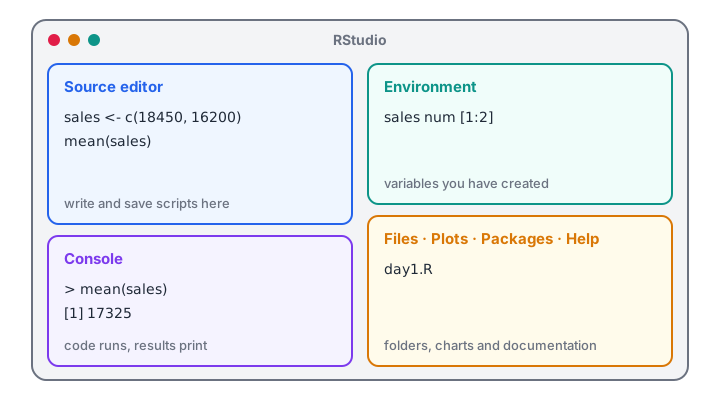
The default RStudio layout. Code you write in the editor runs in the console, and new variables appear in the Environment pane.
- Source editor (top left): your script files. Write code here, not in the console, so you can save it.
- Console (bottom left): where R runs code and prints results.
- Environment (top right): every variable and data frame you have created, with its size.
- Files, Plots, Packages, Help (bottom right): your folders, charts, installed packages and documentation.
Quick check
Which should you install first?
RStudio is an IDE that needs an existing R installation, so R comes first.
Check that R is installed correctly
Click in the console and type the line below. R replies with its version and release date.
R.version.string[1] "R version 4.4.3 (2025-02-28)"Your version may be newer than the one shown, which is fine. Anything from R 4.4 onwards works for this series. If you see a 3.x version, uninstall it and install the current release, because many packages no longer support it.
Write and run your first R script
- Choose File > New Project > New Directory, call it
malwa-mart, and click Create Project. A project keeps your scripts and data in one folder. - Choose File > New File > R Script.
- Type the code below and save it as
day1.R. - Put the cursor on a line and press Ctrl + Enter (Cmd + Enter on a Mac) to run it, or press Ctrl + Shift + Enter to run the whole file.
# day1.R: first look at one week of Vijay Nagar sales (rupees)
daily_sales <- c(18450, 16200, 17900, 15800, 21300, 26750, 24100)

total <- sum(daily_sales)
total
round(mean(daily_sales))
length(daily_sales)[1] 140500
[1] 20071
[1] 7Look at the Environment pane after running it. You should see daily_sales and total listed with their values. That pane is the fastest way to check what R currently knows.
How do you install R packages?
Packages add functions that base R doesn't have. You install a package once per computer, then load it with library() in every new session.
install.packages("dplyr")R downloads the package and its dependencies from a CRAN mirror and prints progress lines. The exact lines depend on your system, so they aren't reproduced here. When the prompt > returns, check the install:
"dplyr" %in% rownames(installed.packages())
library(dplyr)[1] TRUE
Attaching package: ‘dplyr’
The following objects are masked from ‘package:stats’:
filter, lag
The following objects are masked from ‘package:base’:
intersect, setdiff, setequal, unionThe "masked" message is normal. It tells you dplyr has its own filter(), lag() and set functions, which now take priority over the built-in versions with the same names.
You will use dplyr properly in the dplyr tutorial. Many learners install the whole tidyverse bundle with install.packages("tidyverse"), which takes a few minutes the first time.
If you also plan to learn Python, its setup is covered separately in getting started with Python. The two languages install side by side without conflict.
If you would rather set this up with a mentor beside you, Debugshala's hands-on analytics training in Indore starts with exactly this setup in the lab.
Quick check
How often do you need to run install.packages("dplyr") on one computer?
Installing copies the package to your library. Loading with library() is what you repeat in each session.
Common installation mistakes
- Installing RStudio without R. RStudio will open but cannot run anything. Install R first.
- Running
install.packages()in every script. It re-downloads each time. Install once in the console; keep onlylibrary()in scripts. - Forgetting quotes.
install.packages(dplyr)fails. The package name must be a string,"dplyr";library()accepts it with or without quotes. - Using an old R. Packages built for current R may refuse to install on R 3.x.
- Wrong macOS build. An Intel build on an Apple silicon Mac runs through translation and is slower.
- Saving the workspace on exit. RStudio asks to save
.RData. Choose Never in Tools > Global Options so every session starts clean and your script stays the single source of truth.
Key takeaways
- R is the engine and RStudio is the dashboard; install R first.
- Use CRAN's installers on Windows and macOS, and CRAN's apt repository on Ubuntu.
R.version.stringconfirms the installation and shows your version.- Work inside an RStudio project and write code in scripts, not only in the console.
- Install packages once with
install.packages(), load them every session withlibrary(). - Next, learn how R stores values in R data types and variables.
FAQ
Do I need to install R before RStudio?
Yes. RStudio is only an editor and needs R to run code. Install R from CRAN first, then RStudio Desktop from Posit. If you installed them in the wrong order, simply install R now and restart RStudio, which will detect it automatically.
Is RStudio free to download?
Yes. RStudio Desktop has a free open-source edition for Windows, macOS and Linux, and R itself is free under the GNU GPL. Posit also sells commercial server products for companies, but a learner or individual analyst never needs them.
Can I use R online without installing anything?
Yes, browser-based options exist, such as Posit Cloud, which has a free tier with usage limits. They are useful on a locked-down office laptop. For regular study, a local installation is faster and works offline, so install R and RStudio when you can.
How do I update R to a new version?
Download and run the newest installer from CRAN. On Windows and macOS it installs alongside the old version, and RStudio uses the newest one. Then reinstall your packages, since each minor version, such as 4.4 to 4.5, keeps a separate package library.
Where can I get help setting up R for data analytics in Indore?
Debugshala runs data analytics classes at its Old Palasia campus in Indore, with a free demo class first. Trainers set up R and RStudio with you in the lab, in English or Hindi. Afterwards you can try timed quizzes on Debugshala Test to check your progress.
From the team behind this site
Go further with the Data Analytics Course at Debugshala
These tutorials are written by Debugshala, a training and placement institute at Old Palasia, Indore. The classroom course adds live mentoring, real projects and interview preparation.
- Offline classes at Old Palasia, Indore
- Free demo class before you pay
- Non-IT, fresher and year-gap friendly
- Placement assistance
700+ students placed · 200+ hiring partners · 4.9★ Google rating
